
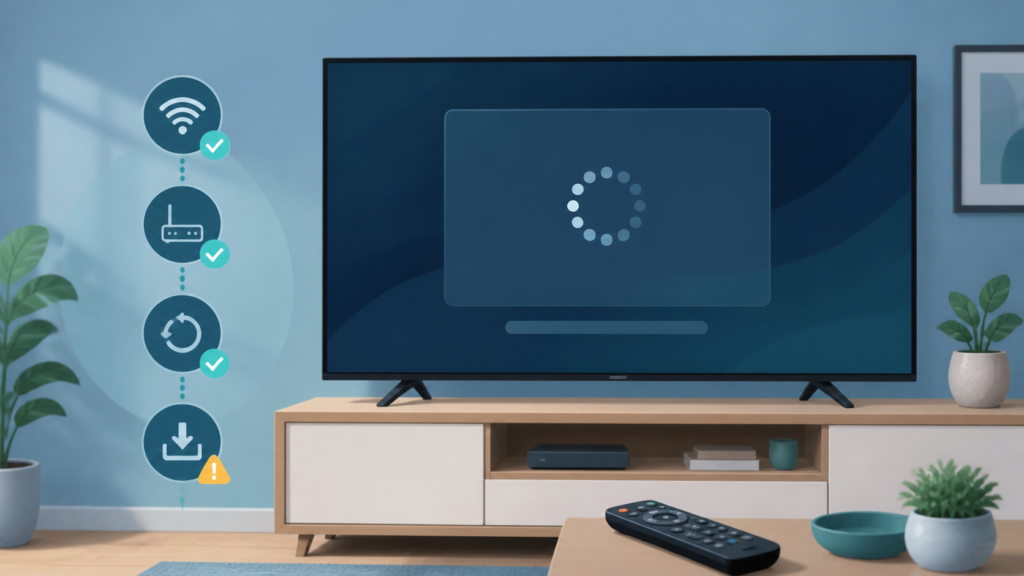
Quick answer: If an IPTV app will not open on a Smart TV after reinstalling, first confirm that the reinstall completed and the TV is using the intended app version. Then check storage, system updates, date and time, network status, app permissions, and one normal restart before changing account settings.
IPTV App Not Opening on Smart TV After Reinstall: Safe Checks
An IPTV app that will not open on a Smart TV after reinstalling can be affected by a failed installation, limited storage, an incompatible system version, a temporary TV state, network initialization, or a preference that was restored incorrectly. Playback history from before the reinstall may no longer exist, so troubleshooting should begin with the new installation rather than assuming the old app state remains.
Confirm what happened during reinstall
Open the television’s application list and check whether the new app icon is present. Confirm that the installation completed without an error and that the icon launches the intended player. If the icon is missing, the issue is installation availability rather than a player crash. Record the exact message shown by the television.
- The app icon is missing after installation.
- The icon appears but closes immediately.
- The app stays on a blank or loading screen.
- The television reports insufficient storage.
- The app opens only after a full restart.
Do not install several similar players at once. That can make it unclear which application was tested and can consume additional storage.
Step 1: Test the television home screen
Use the television home screen and open one unrelated supported application. If the home screen is slow or other apps also fail, focus on the television state, storage, and system software. If other apps open normally while the IPTV app fails, keep the investigation focused on the app installation and its documented compatibility.
Restart the television once using its normal menu or power procedure. After it returns, wait for the home screen to become responsive and test the IPTV app one time. Record whether the behavior is a close, freeze, loading loop, or visible error.
Step 2: Check storage and system software
Review available storage in the television’s normal settings. A full device may report a completed download while failing to create all required local files. Remove only known unused applications or temporary data, and do not delete personal content just to test a theory.
Record the television software version and app version before updating. Install updates through the official television store or manufacturer path. After an update, test the same app icon and record whether the result changes. Updates can reset permissions or preferences, so do not assume a new version preserves the previous state.
Step 3: Check date, time, and network initialization
Confirm that the television date, time, and time zone are correct according to the device settings. Where automatic time is supported, use the documented automatic option. An incorrect clock can affect app initialization or secure connections, but it is only one possible factor and should not be presented as the confirmed cause without evidence.
Check the television network status and open one ordinary application that needs connectivity. Do not repeatedly remove and re-add the network during the first test. Record whether the IPTV app fails before any login screen appears or only after it tries to load content.
Step 4: Review application permissions and compatibility
Review only permissions the television or player documentation identifies as relevant. Avoid granting unrelated access. Confirm that the app is available for the specific television model and operating-system version. Do not infer compatibility from the fact that a similarly named app works on a phone or streaming box.
If the app store shows an update, install it through the normal official route. If the store reports that the app is unavailable or unsupported, save the exact wording and avoid repeated installation attempts. A supported external device may be a separate setup option, but confirm compatibility before recommending it.
Step 5: Test a clean launch path
Close the television’s recent-apps view if the platform provides one, return to the home screen, and launch the player once. Do not open several menus while the app is starting. If the app reaches a login or setup screen, record that progress separately from a failure before launch.
If a documented clear-cache or reset-app action exists, read its effect before using it. A reset can remove local preferences and may require setup again. Make one change, reopen the app, and keep the result factual.
Step 6: Compare another supported device
When practical, compare the same approved service setup on another supported device. If it works elsewhere, compare television model, app version, storage, system software, and network path. If the same player fails across devices, report the shared error and the point at which it stops.
Never send passwords, activation codes, private URLs, or tokens in a support message. A safe report includes TV model, app version, installation message, storage state, network state, clock setting, and exact launch behavior.
Practical troubleshooting checklist
- Confirm the app icon and installation result.
- Test the TV home screen and another app.
- Restart the television once normally.
- Check storage and software versions.
- Check date, time, and network status.
- Review documented compatibility and permissions.
- Use one documented recovery action.
- Report the launch stage without credentials.
When to request help
Review the IPTV service page and services page. The official Telegram support group is available. Share TV model, app version, install result, storage, clock, network status, and exact error. Never send private login data.
FAQ
Why does the app icon appear but immediately close?
Compare the TV home screen, storage, software version, and documented app compatibility before reinstalling again.
Should I reset the entire Smart TV?
No. A full reset removes unrelated preferences. Record the app error and use one documented app-level recovery step first.
Why does another app open normally?
The TV may be healthy while the IPTV installation or compatibility differs. Record the point where the IPTV app stops.
What should support receive?
TV model, app version, installation result, storage state, clock, network state, and visible error are useful. Keep credentials private.
Conclusion
An IPTV app not opening on a Smart TV after reinstall should be isolated across installation completion, storage, software, clock, network, permissions, compatibility, and clean launch behavior. Use one controlled check at a time. Start with the TVMemberLink home page.
Make the next test comparable by noting the television model, operating-system version, app version, and whether the failure occurs before or after sign-in. Record the exact on-screen message. Reinstalling repeatedly or changing several network settings together can remove useful evidence.
If the issue continues, contact support through the official Telegram support channel with the TV model, app version, storage state, clock setting, network state, and visible error. Do not send passwords, payment details, private tokens, or unredacted account screenshots.
Before requesting help, describe one reproducible launch path: open the television home screen, select the installed application, wait for the normal startup period, and report the exact point where it stops. State whether the icon disappears, an error appears, or a setup screen loads. This keeps the report specific without exposing account information.
Avoid performing a full television reset as an early troubleshooting step. It can remove unrelated preferences and does not establish whether the application is compatible. Preserve the visible error and test one documented app-level action at a time.
