
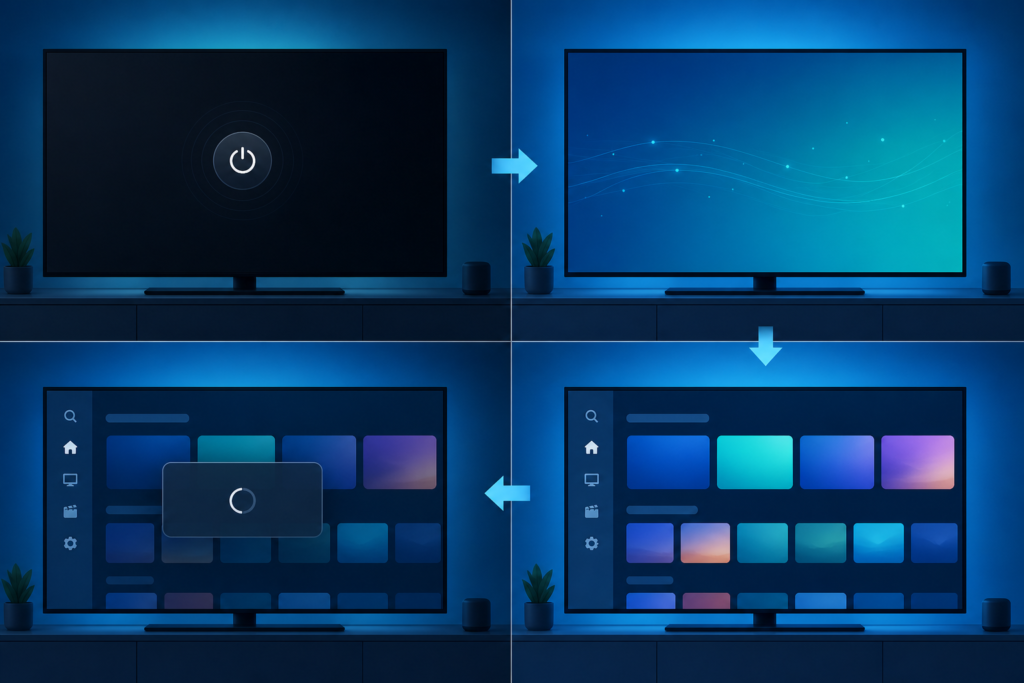
Quick answer: If an IPTV app closes or disappears after a Smart TV or streaming box wakes from standby, first perform a normal restart, then check app updates, device storage, memory load, and the player cache. Standby can leave an app session or decoder in an incomplete state. This is different from an app that never opens after installation or a TV with no display signal.
This guide covers Smart TVs, Android TV boxes, and Fire TV-style devices. It uses safe, reversible steps and keeps the authorized player setup intact. Do not factory reset the device until normal restart, app state, storage, and official updates have been checked.
Why standby can affect a player
Standby may pause an application while the network, display output, and audio decoder change state. When the device wakes, the app may not restore its previous session correctly. Low storage, a pending update, background apps, or heat can make recovery less reliable.
- Only IPTV closes: inspect the player cache, session, and supported version.
- All apps close or lag: inspect device storage, memory, updates, and heat.
- App closes after a long sleep: restart the player and compare a fresh launch.
- Picture also disappears: inspect HDMI and display output separately.
Step 1: Test a fresh launch
After the app closes, open another application and confirm whether the home screen responds. Then force-stop the IPTV player if supported and reopen it. Test one program after the app loads. If it works after a fresh launch, the issue is likely a standby session rather than account authentication.
Record whether the problem occurs after every standby cycle or only occasionally. Note the device, player version, approximate sleep duration, and whether the TV input also changed.
Step 2: Restart the device normally
Use the device’s system restart option rather than repeatedly pressing the remote power button. A normal restart refreshes application processes and media decoders. Allow the device to complete startup before opening the player.
If the issue began after a system update, check whether another official update is available. Avoid installing unknown packages that promise to keep apps alive or bypass standby behavior.
Step 3: Check storage and background load
Review free storage and remove only apps or files you recognize. Close unused applications when the device supports that function. A device with very little free space may have trouble saving temporary playback state or completing updates.
Check ventilation around a streaming box. If the app closes after extended use and the box feels hot, move it to an open safe position. Never cover vents or use unsafe cooling methods.
Step 4: Clear cache before app data
Clear the IPTV player cache and test a normal close, standby, and wake cycle. Cache clearing is less disruptive than clearing app data. Clearing data can remove authorized setup details, so do it only after confirming the supported configuration is available privately.
After cache clearing, change one setting at a time and test the same sequence. Do not repeatedly reset the app without recording the result.
Step 5: Review network and display recovery
Check whether the device reconnects to the intended network after waking. Test another app before blaming the IPTV player. If the app closes while the HDMI signal also disappears, test the display path separately with a direct connection and correct TV input.
Keep the TV picture mode, network profile, and player configuration unchanged during the first comparison. This makes the standby symptom easier to reproduce.
Support and internal resources
Review the IPTV service guide, services, and homepage. Use WhatsApp or the official Telegram support group with device, player version, standby timing, storage result, and app comparison. Never send passwords, private URLs, tokens, or payment data.
FAQ
Why does the app work after restart but not standby?
Standby may leave a network, decoder, or application session incomplete. Compare a fresh launch and record the wake sequence.
Should I disable standby?
Not first. Check updates, storage, cache, heat, and normal restart behavior before changing power settings.
Will clearing app data help?
It may repair local state but can remove authorized configuration. Clear cache first.
Why does the TV also lose picture?
The HDMI or display path may be recovering separately from the app. Test direct HDMI and the correct input.
Conclusion
When IPTV closes after standby, test a fresh launch, restart normally, inspect storage and heat, clear cache before data, and separate app recovery from network and HDMI behavior. Keep a short record and use official support without exposing private credentials.
Use a repeatable standby test rather than guessing. Open the player, start one program, enter standby, wait through the normal sleep period, and wake the device. Note whether the app closes, whether the TV input changes, and whether another application behaves normally. This sequence helps distinguish app recovery from a display or power setting.
If a normal restart restores the app but standby repeatedly breaks it, keep the player and system versions recorded. Review official update notes and supported power settings before disabling standby entirely. Avoid third-party tools that force background apps to remain active.
Once a working sequence is found, close the player normally before putting the device to sleep. This can provide a stable baseline while the underlying behavior is reviewed.
Check the network after wake before opening the player. If other apps reconnect but the IPTV app closes, focus on its session and cache. If the whole device remains offline, investigate the network route rather than reinstalling the player.
Storage and heat should be treated as clues, not assumptions. Record whether the app closes immediately, after a long viewing session, or only after standby. This timing helps support reproduce the behavior.
A useful comparison includes the home menu, another application, and the IPTV player after a normal wake. If only the IPTV player closes, a local app state is more likely than a television-wide failure. If the TV input also reports no signal, investigate the HDMI path separately.
Keep the device ventilated and avoid putting it into a closed cabinet during a long test. Do not use unofficial memory cleaners or modified players as a shortcut, because they can change the very session behavior being diagnosed.
Before contacting support, note whether the player closes immediately on wake or only after a program resumes. Also note whether the device date, network, and HDMI input recover normally. These details separate an app session issue from a broader standby recovery problem.
If disabling standby is considered, use the manufacturer’s normal power settings and test one change at a time. A permanent power change should not be necessary before the app, storage, and update checks are complete.
Keep the normal restart sequence documented and avoid repeated factory resets. If a later update changes standby behavior, compare it with the known-good sequence instead of assuming the account or service changed.
Confirm the app remains stable after one normal wake before closing the task.


