
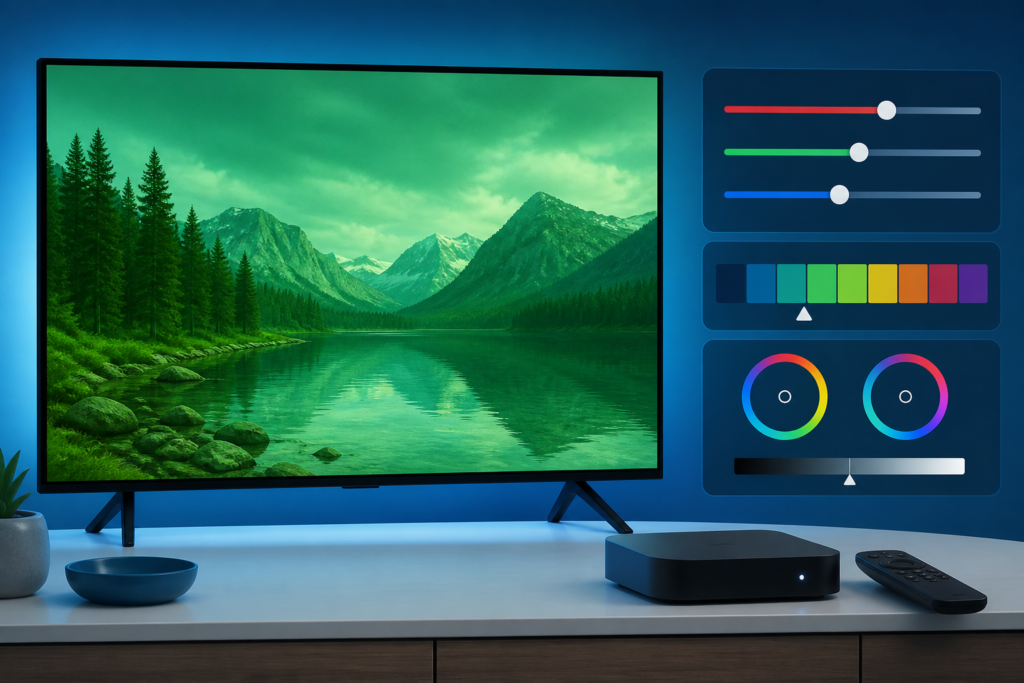
Quick answer: If IPTV video has a green tint, incorrect colors, or a washed-out cast, compare another program and another app before changing picture calibration. Then check the TV picture mode, player hardware decoding, HDMI path, HDR or color-format negotiation, and device temperature. A color problem affecting every input points to the television or display chain; a problem limited to one player points to the app, decoder, or output setting.
This guide covers Smart TVs, Android TV boxes, Fire TV-style devices, and external receivers. It uses reversible tests and avoids unsupported claims about the source. Do not reset every picture setting at once. A controlled comparison shows whether the issue belongs to the content, player, cable, or display.
Green tint and washed-out color have different clues
A green tint changes neutral areas and skin tones toward green. Washed-out video may have weak contrast or a gray appearance. Incorrect HDR handling can make colors look too dark, too bright, or strangely saturated. A cable or handshake issue can produce a color cast only on one input.
- Every input affected: inspect TV picture mode and panel settings.
- One HDMI input affected: check cable, port, and output negotiation.
- Only IPTV affected: review player decoder and video settings.
- Only one program affected: compare another stream before changing the device.
Step 1: Compare the same TV with another source
Open a normal TV input, built-in app, or another legitimate streaming application. Use a scene with neutral colors and compare it to the IPTV program. If both sources show the same cast, focus on the TV or output path. If only IPTV is affected, continue with player settings.
Test a second IPTV program as well. Source characteristics can differ, and one program should not be used as proof that the whole device is misconfigured.
Step 2: Review picture mode and color controls
Set the TV to a standard or normal picture mode for testing. Turn off unusual tint, color temperature, live color, or aggressive enhancement settings temporarily. If the TV has a Tint control, return it to the manufacturer’s neutral position before testing. Change one control at a time and record the original value.
Do not copy calibration numbers from a different TV panel. Screen models, room lighting, and source formats vary. A safe troubleshooting target is natural color and correct detail, not a particular number.
Step 3: Check player decoder and output
Open the player’s video settings and review hardware acceleration, decoder choice, HDR mode, and color-output options if available. A decoder mismatch can affect one application while other apps remain normal. Return a recently changed option to its previous value and restart playback.
Choose a standard output mode supported by both the streaming device and television. Avoid forcing advanced HDR or color formats simply because they appear more modern. The correct mode depends on the source, device, cable, and TV.
Step 4: Test HDMI ports and cables
Reseat the HDMI cable and try another compatible TV input. If the device passes through a receiver or soundbar, test a direct connection to the TV. A direct path can reveal a handshake or format negotiation issue. Restore the original setup after the comparison and record which path produced natural color.
Use a known-good compatible cable for testing. Do not assume that replacing every cable will solve an issue that also appears on the TV’s built-in apps.
Step 5: Check HDR, temperature, and updates
If the issue appears after switching programs or waking from standby, restart the player and device. Review HDR settings and automatic picture modes. Check airflow around the streaming box, especially if the color changes after extended playback. Avoid covering vents or using unsafe cooling methods.
Install updates only through official app stores and manufacturer settings. Updates may change decoder behavior or reset picture preferences. Avoid modified players and color utilities from unknown sources.
Use a repeatable color comparison
Choose a neutral menu, a white area, and a scene with natural skin tones for comparison. Keep the TV picture mode fixed while switching only the IPTV player or HDMI input. Do not judge color from a phone camera or different room lighting. Document the final mode after the issue is resolved.
If the cast appears only after standby, record whether a normal restart removes it. If it follows one HDMI input, test a direct path and known-good cable. Keep the final working picture mode documented and avoid changing unrelated calibration controls.
Color problems can be exaggerated by a television’s dynamic picture mode, blue-light filter, eye-comfort mode, or automatic ambient-light adjustment. Temporarily use a normal fixed mode for diagnosis, then restore the preferred setting after the source is confirmed. Do not perform a full panel calibration from generic internet values. When reporting the issue, describe the color change rather than claiming that a particular component is defective.
For a useful comparison, report whether the TV menus and built-in apps are normal, whether the color follows one HDMI input, and whether a restart changes the result. These observations are safer and more actionable than guessing which component has failed. Also note whether the issue follows a single program or appears across the full player.
Keep the original picture mode and output values recorded before changing them. If the color becomes normal, test one more program and then leave unrelated settings unchanged. This avoids replacing a temporary handshake issue with a new calibration problem.
Support and internal links
Review the IPTV service guide, services, and homepage. Use WhatsApp or the official Telegram support group with the device, player, input path, and comparison result. Do not send passwords, private URLs, tokens, or payment information.
FAQ
Why is only IPTV green?
The player decoder, output mode, or one source may be involved. Compare another app and another IPTV program.
Can HDMI cause a green picture?
A cable, port, or format handshake can affect one input. Test a direct path and known-good cable.
Should I change the TV Tint setting?
Return it to a neutral position and change one control at a time. Avoid copying settings from another TV.
Does HDR always improve color?
No. Incorrect HDR negotiation can make color and contrast look wrong. Use a compatible standard mode for testing.
Conclusion
Diagnose green or incorrect IPTV color by comparing sources, returning picture controls to neutral, checking the player decoder, testing HDMI paths, reviewing HDR, and monitoring temperature. Preserve original settings and report non-sensitive evidence through official support.
Use the same neutral scene for a final comparison after restarting the player, and stop when the color is natural and consistent.
If the issue remains limited to one player, keep the television calibration unchanged and report the player decoder and output mode instead.
Record the final working input and mode so future updates can be compared safely.
Keep unrelated picture controls unchanged after the repair.
Use the same display and viewing conditions for the final check after the player restarts.


