
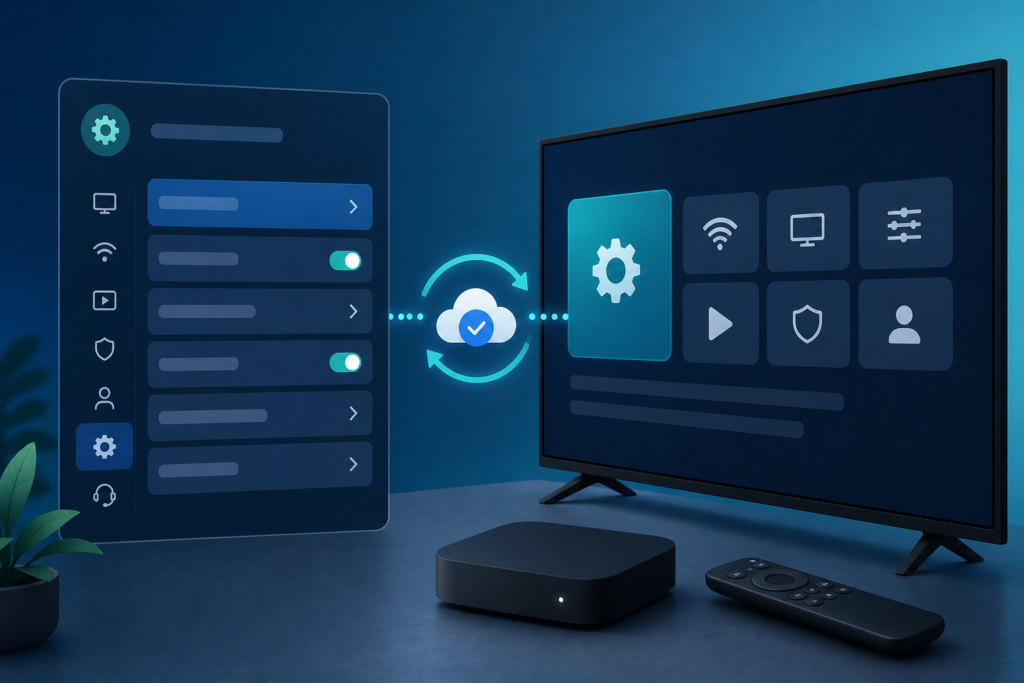
Quick answer: If an IPTV player does not save language, subtitle, picture, or playback settings after a restart, first check whether the app has a Save or Apply action, whether the device has enough storage, and whether the player is being force-closed before it writes changes. Then review permissions, app updates, and device time. A setting that resets in one player may be an app behavior, while settings that reset across apps can indicate device storage or system problems.
This guide covers Smart TVs, Android TV boxes, and Fire TV-style devices. It focuses on legitimate player configuration and reversible tests. Do not repeatedly clear data or reinstall the app before checking whether the setting is supported and whether it was actually saved.
A short written record is especially useful for settings that reset only after standby or a full power cycle. Note the original value, the Save or Apply action, the way the app was closed, and the value shown after reopening. This identifies whether the reset happens during playback, app shutdown, device restart, or the next program.
Why settings may not persist
Players can store preferences locally, in a device profile, or as part of a playback session. Some settings apply only to the current program and are not designed to become a global default. Others require an Apply, Save, or Confirm button. A device with very little free storage may also fail to write new preferences.
- One setting resets: it may be session-specific or unsupported as a global default.
- Every setting resets: inspect permissions, storage, app data, and device restrictions.
- Reset occurs after forced shutdown: allow the player to close normally before powering off.
- Reset began after update: review app release behavior and changed preferences.
Step 1: Confirm the setting’s scope
Change one setting and test it in the same program. Some audio tracks, subtitle styles, aspect ratios, and playback controls belong only to the current stream. Look for a label such as Default, Apply to all, Remember choice, or Save. If no persistent option exists, the player may intentionally reset that choice when a new program begins.
Write down the exact menu path and result. Do not assume that a setting displayed in the overlay is a global application preference. Test the same preference after closing only the program, then after closing the full player.
Step 2: Use Save or Apply correctly
After changing a preference, select Save, Apply, Done, or OK when the player provides one. Wait for the menu to close before pressing Back repeatedly. Some remote shortcuts exit the overlay without committing changes. Reopen the same menu to confirm the new value before restarting.
Do not press the power button immediately after a change. Close the player normally, wait briefly, and then restart from the device menu. This gives the app a chance to write its preference.
Step 3: Check storage and permissions
Review free storage in the device settings. Remove only applications and files you recognize. If storage is nearly full, the player may not be able to save local preferences or update its components. Avoid deleting system files or using unknown cleaner apps.
On Android-based devices, review the player’s normal permissions and app settings. A supported player should not require unrelated sensitive permissions. Do not grant broad access to an unknown application merely to make a setting persist.
Step 4: Clear cache before app data
Clear temporary cache and restart the player. Cache clearing may resolve a damaged preferences screen while preserving the authorized setup. Clearing app data is more disruptive and can remove configuration. Use it only after recording the supported setup method and confirming that the authorized details are available privately.
After clearing data, configure one preference and test it before adding multiple changes. This isolates whether the reset is caused by the old app state or by a current limitation.
Step 5: Review updates and device time
Install player and system updates only through official settings or app stores. An update can change the location or name of a preference. Review automatic date and time as well, because an incorrect device clock can interfere with secure sessions and saved state in some applications.
Avoid modified apps that promise to remember every setting or unlock hidden functions. They can create privacy, reliability, and security risks. Use the supported player and document its normal behavior.
Step 6: Compare another player or device
If the same preference persists in another supported player, the first app may have a design limitation or damaged local state. If settings reset on multiple apps, review device storage, system restrictions, and the device profile. Compare only authorized configurations and do not expose account credentials during testing.
Do not treat a reset preference as proof that the service account is invalid. Local application storage and stream-level defaults are separate from account authentication. Keeping those layers separate makes the report more accurate and avoids unnecessary credential changes.
After a successful change, avoid changing several related preferences immediately. Confirm persistence through one normal close and one restart first. This creates a dependable baseline before you customize other playback or accessibility options.
Support and internal resources
Review the IPTV service guide, the services page, and the homepage. For help, use WhatsApp or the official Telegram support group. Share the device, player version, exact setting, save action, and restart behavior. Never send passwords, private playlist URLs, tokens, or payment information.
FAQ
Why does a subtitle or audio choice reset?
It may be a stream-specific choice or the player may require a Save or Apply action. Confirm the setting’s scope first.
Can low storage prevent settings from saving?
Yes. Review free space and remove only files or apps you recognize.
Should I clear app data immediately?
No. Clear cache and test a normal restart first. App data clearing can remove authorized configuration.
Why did settings reset after a player update?
The update may have changed preference behavior or reset defaults. Review the new menu and official release information.
Conclusion
When IPTV settings do not persist, verify scope, use Save or Apply, allow normal shutdown, check storage and permissions, clear cache before data, review updates and device time, and compare another supported player. Keep a clear record and contact official support without exposing sensitive account information.
The safest repair is the smallest repair that consistently survives a normal close and restart. Stop once that result is achieved.
If the setting still resets, report the exact menu path, the save action, and whether the reset occurred after closing the app or restarting the device. That evidence is more useful than repeating a factory reset.
Keep the original configuration available privately before testing any reset, and make changes one at a time so the final result can be reproduced.
That makes future troubleshooting faster and safer.
{“@context”:”https://schema.org”,”@type”:”FAQPage”,”inLanguage”:”en-US”,”mainEntity”:[{“@type”:”Question”,”name”:”Why does a subtitle or audio choice reset?”,”acceptedAnswer”:{“@type”:”Answer”,”text”:”It may be stream-specific or the player may require a Save or Apply action. Confirm the setting scope first.”}},{“@type”:”Question”,”name”:”Can low storage prevent settings from saving?”,”acceptedAnswer”:{“@type”:”Answer”,”text”:”Yes. Review free space and remove only files or apps you recognize.”}},{“@type”:”Question”,”name”:”Should I clear app data immediately?”,”acceptedAnswer”:{“@type”:”Answer”,”text”:”No. Clear cache and test a normal restart first because app data clearing can remove configuration.”}}]}
Before contacting support, repeat the test after a normal close and restart, then record the exact value shown in the menu. This confirms whether the setting is session-based, device-specific, or consistently rejected by the player.


