
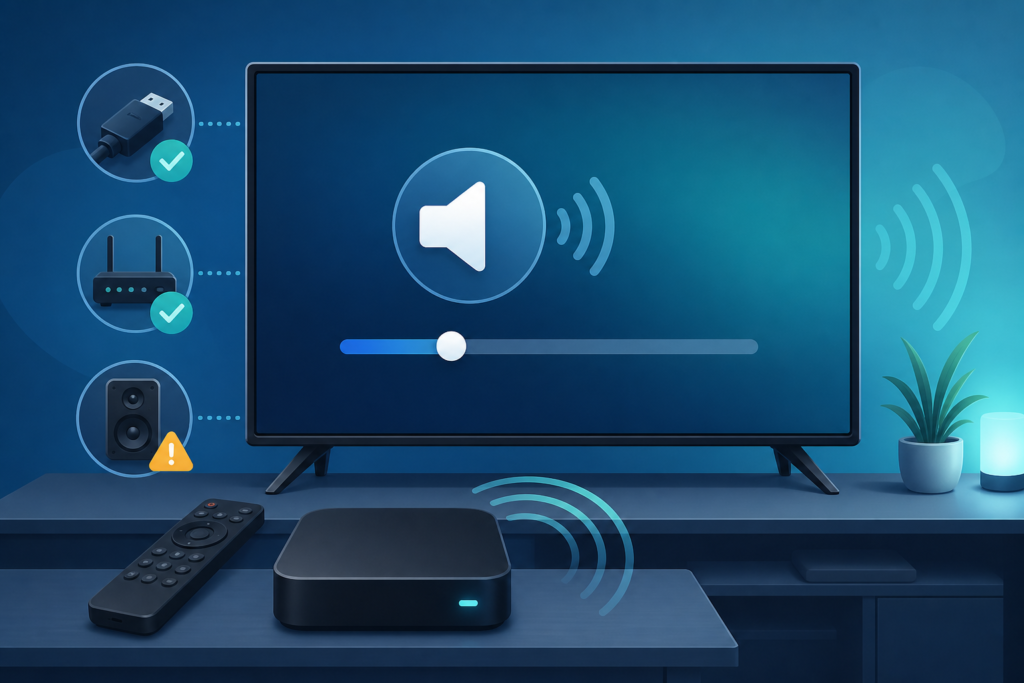
Quick answer: If IPTV volume is too low even when the television volume is high, test the player volume, TV volume, external sound system, and digital audio output separately. First confirm whether every app is quiet or only IPTV. A low source level, muted player control, soundbar input mode, Bluetooth volume, or audio-processing setting can all create a similar symptom.
This guide is for Smart TVs, Android TV boxes, Fire TV-style devices, soundbars, receivers, and Bluetooth headphones. It uses reversible checks and avoids changing several audio settings at once. Do not assume that a higher TV volume fixes a low source signal; first identify which part of the audio chain is limiting the level.
Use a familiar scene or spoken section for each comparison and keep the TV volume fixed while switching one component. Music, dialogue, and action scenes can have different perceived loudness, so comparing unrelated programs may lead to the wrong conclusion. Record whether the volume indicator changes and whether the actual loudness changes.
Volume control and audio track are different
The player may have its own volume control, while the TV remote controls the television output. A soundbar or receiver can add another volume level. Bluetooth headphones can also remember their own volume. Changing the language or audio track does not necessarily increase loudness, and changing surround processing does not repair a muted player.
- Only IPTV is quiet: inspect player volume, stream audio, and app settings.
- Every app is quiet: inspect TV, soundbar, receiver, or Bluetooth output.
- TV speakers are normal but soundbar is quiet: inspect the external input and output mode.
- Volume changes but loudness does not: check whether the remote controls the correct device.
Step 1: Test another program and app
Play another program in the IPTV player and compare it at the same TV volume. If only one program is quiet, the source may have a different audio level or track. Then open another legitimate streaming application. If another app is also quiet, focus on the TV or external audio path instead of clearing the IPTV player.
Check whether the player’s volume indicator moves when you press volume buttons. Some players have separate mute and volume controls inside the playback overlay. Press mute once and wait for the indicator to update before pressing repeatedly.
Step 2: Check the TV speakers directly
Temporarily switch the television to its built-in speakers. This comparison separates the TV from a soundbar, receiver, optical cable, HDMI ARC/eARC path, or Bluetooth device. If internal speakers are clear and loud enough, the player may be fine and the external audio path needs attention.
Review the TV’s audio output menu and make sure it is set to the device you are testing. A TV can send sound to a paired Bluetooth device or an inactive HDMI input while the user changes the wrong volume control. Restore your original output after the comparison.
Step 3: Check external equipment input and volume
On a soundbar or receiver, select the input connected to the streaming device or television. Confirm that mute is off and that the device is not using a night, dialogue, or volume-limit mode that reduces overall loudness. These modes vary by manufacturer and may be useful in some rooms, but they complicate troubleshooting.
Test another source through the same soundbar input. If the second source is also quiet, the external equipment or cable path is more likely. If the second source is normal, return to the IPTV player and TV output settings.
Step 4: Review digital audio output
Check PCM, passthrough, stereo, and surround options according to the capabilities of your TV and sound system. A mismatch can produce low, missing, or unusual audio. Use the simplest compatible mode for testing, usually a standard stereo or PCM option when the equipment instructions recommend it.
Do not switch every sound mode at once. Change one option, replay the same scene, and record the result. If the source has multiple audio tracks, confirm that you selected the intended track before judging volume.
Step 5: Check app and device state
Close and reopen the player, then restart the streaming device from the system menu. A player resumed from standby can retain a muted or unusually low session state. Review the application’s playback settings and clear cache before clearing data. Clearing data can remove authorized configuration and require setup again.
Install updates only through official manufacturer settings or app stores. Avoid modified players and unknown “volume booster” utilities. They may distort audio, create security risks, or change settings for other applications.
Step 6: Test Bluetooth carefully
If headphones are connected, check both the device volume and headphone volume. Some Bluetooth devices remember a separate level. Disconnect Bluetooth temporarily and test the TV speakers. If sound returns to normal, pair the headphones again according to the manufacturer’s process and review any absolute-volume setting only when the instructions support it.
When an external audio device is used, make sure its remote is not adjusting a different input or a separate volume zone. A correct on-screen volume number does not prove that the intended speaker is active. Testing the TV speakers first gives you a clean baseline before reconnecting additional equipment.
If the sound becomes normal after restarting but later falls again, record whether standby, input switching, or a particular program triggers it. A repeatable trigger is more useful than repeatedly increasing the volume and may point to a session or output-handshake issue.
Support and safe reporting
Use the IPTV service guide, the services page, and the homepage. Contact support through WhatsApp or the official Telegram support group with the device type, player name, output method, and comparison results. Do not send passwords, private URLs, tokens, or payment information.
FAQ
Why is only one IPTV program quiet?
The selected source may have a different audio level or track. Compare another program before changing the TV output.
Why is the soundbar quiet but TV speakers normal?
Check soundbar input, mute, volume-limit modes, cable path, and digital output compatibility.
Does passthrough always make sound louder?
No. Passthrough changes how audio is delivered and decoded. The correct option depends on the equipment.
Should I install a volume booster?
Avoid unknown utilities. Use the player, TV, and manufacturer-supported audio controls instead.
Conclusion
Diagnose low IPTV volume by testing another program and app, switching to TV speakers, checking external equipment, reviewing digital output, restarting safely, and separating Bluetooth volume from TV volume. Change one setting at a time and use non-sensitive details when requesting support.
A clean baseline through the TV speakers makes later soundbar or headphone testing much easier. Restore your preferred output only after the source level is confirmed.
Keep the final working output mode documented so a future update or standby issue can be compared against a known-good state.
This record also helps distinguish a quiet source from a speaker-path problem when the same device is tested again.


