
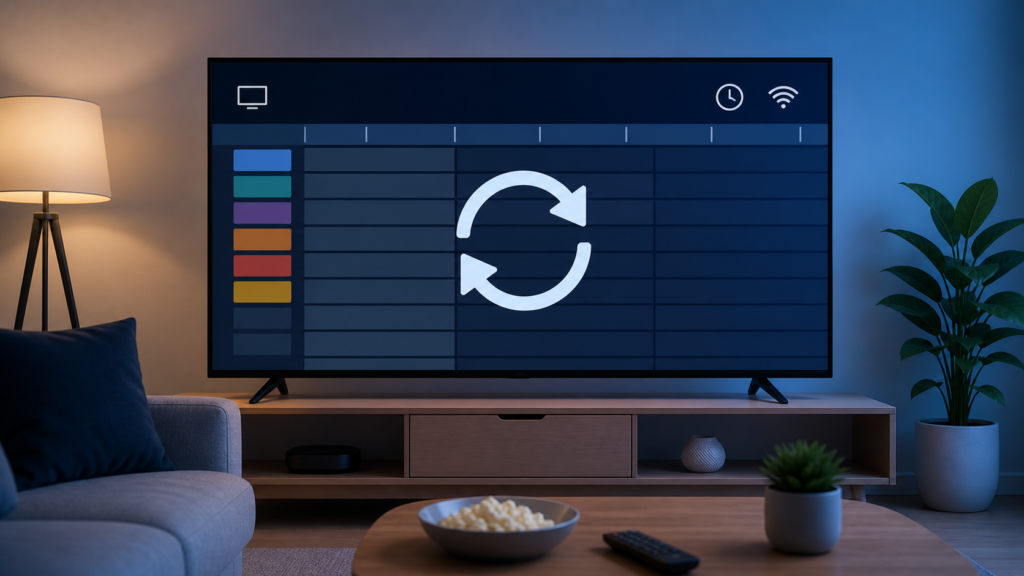
Quick answer: If the IPTV EPG is not loading, first check whether the player itself opens and whether live playback works. Then confirm the device is online, verify that the player has an EPG or guide source configured, refresh the guide once, and compare the result with another permitted item or category. A blank guide is different from a guide that is shifted by several hours, so record the exact symptom before changing time-zone settings.
Electronic programme guides depend on the player, device clock, guide source, and the data returned for the selected list. The channel list may work while the guide remains empty. That does not automatically mean the account, device, or network has failed. A staged diagnosis keeps schedule metadata separate from login, playlist, buffering, and playback issues.
What does “IPTV EPG not loading” mean?
Note whether the guide menu is missing, the guide opens but has no rows, a spinner never ends, or only some groups have schedules. Check whether live playback starts normally and whether the EPG fails for every permitted item. Identify the device that runs the player: Smart TV, Android TV box, Firestick-style device, or another supported platform. Our IPTV devices guide explains why the player device owns many guide settings.
Keep usernames, passwords, private playlist URLs, activation codes, and full account screenshots private. A device, player, guide stage, and non-sensitive error are enough to begin support.
Before troubleshooting the guide
Check playback separately
Open one permitted item without using the guide. If playback works, focus on guide data and player settings. If playback and the list both fail, investigate the player, network, login, or playlist first. Do not treat an empty guide as proof that video content is unavailable.
Check the device clock
Verify date, time, and time zone on the device that runs the player. Automatic time is usually the clearest baseline when available. If the clock itself is wrong, correct it and reopen the player before testing the guide. For an offset guide, use the EPG time-zone guide.
Confirm the service context
Use an authorized player and content source according to the rules that apply in your location and plan. EPG data is schedule metadata, not a guarantee of a package, channel count, or playback result. Review the IPTV pricing and service information for compatibility questions.
How to fix an IPTV EPG that will not load
Step 1: Open the correct guide menu
Some players place the guide under Live TV, programme guide, channel list, or an information button. Confirm that the remote has focus in the player and that the guide belongs to the intended app. If the menu is not present at all, check player compatibility and interface settings before changing network options.
Step 2: Test the player connection
Open another permitted app on the same device and test one permitted playback item. If the device is offline, reconnect it to the intended Wi-Fi or Ethernet path. If other apps and playback work, keep the router unchanged and move to guide-source checks. Never publish the network password.
Step 3: Check guide-source settings
Look for EPG URL, guide source, XML, programme data, or refresh settings. The exact labels vary by player. Confirm that the selected source belongs to the authorized setup and that the field is in the correct place. Do not paste private URLs into public chat or screenshots.
Step 4: Refresh guide data once
Use the player’s normal refresh or update-guide action and wait for it to finish. Close and reopen the guide afterward. Repeated refreshes can make the result harder to interpret. Record whether the guide is still blank, partly populated, or now showing rows.
Step 5: Compare several categories
Check more than one permitted group. If only one group has no schedule, the source or metadata scope may differ. If every group is blank, focus on the guide source, player compatibility, device time, and refresh behavior. Do not change a global offset to solve a guide that is empty rather than shifted.
Step 6: Check storage and updates
Review available device storage and apply normal platform or player updates through the official process. A player can open while failing to save guide data when storage is limited. Restart the device once after a documented update, then test the same guide.
Step 7: Compare a supported device
If the same authorized setup shows guide data on one supported device but not another, compare player version, platform, clock, list source, and storage. This points toward a local compatibility or configuration difference. Use the IPTV service information for supported setup guidance.
Common EPG loading problems
The guide menu is missing
Check whether the player and selected item support an EPG, then review interface or remote-focus behavior.
The guide opens but is blank
Check the guide source, refresh action, device clock, storage, and whether every group is affected.
Only some groups have data
Record the affected group and compare another source or category. Avoid changing global time settings for a partial data issue.
The guide loads very slowly
Test the device connection and storage, then wait for one normal refresh. Separate a slow guide from playback buffering.
When to contact IPTV support
Contact support when playback works, the player is supported, the device clock and network are correct, and the guide remains blank after a documented source check and refresh. Use the IPTV support hub and existing WhatsApp or official Telegram buttons. Share the device, player, affected scope, error wording, and non-sensitive steps. Never send passwords or private URLs.
Before contacting support, note whether the guide menu itself is missing, whether the spinner ends, whether live playback works, and whether the same result appears after one normal player reopen. This short timeline distinguishes an interface problem from missing guide metadata without exposing the private configuration.
FAQ
Why is my IPTV EPG blank?
The guide source, player compatibility, device clock, storage, or refresh state may be responsible. Check whether playback and every group are affected.
Why does IPTV play video but show no guide?
Playback and guide metadata can use separate settings or sources. Check the player’s guide configuration and refresh action.
Should I change the time zone?
Only when the guide is shifted rather than empty. First correct the device clock and use the EPG offset guide for a consistent time difference.
What should I send support?
Send the device, player, guide stage, affected scope, and non-sensitive tests. Do not send credentials or private URLs.
Final checklist
Test playback separately, open the correct guide, check the device clock and network, verify the guide source privately, refresh once, compare categories, review storage and updates, and compare a supported device when available. Keep a blank guide separate from a shifted guide, login issue, playlist issue, buffering, and playback failure. Use the services page and official support for compatibility questions.
{“@context”:”https://schema.org”,”@type”:”FAQPage”,”inLanguage”:”en-US”,”mainEntity”:[{“@type”:”Question”,”name”:”Why is my IPTV EPG blank?”,”acceptedAnswer”:{“@type”:”Answer”,”text”:”The guide source, player compatibility, device clock, storage, or refresh state may be responsible. Check whether playback and every group are affected.”}},{“@type”:”Question”,”name”:”Why does IPTV play video but show no guide?”,”acceptedAnswer”:{“@type”:”Answer”,”text”:”Playback and guide metadata can use separate settings or sources. Check the player’s guide configuration and refresh action.”}},{“@type”:”Question”,”name”:”Should I change the time zone?”,”acceptedAnswer”:{“@type”:”Answer”,”text”:”Only when the guide is shifted rather than empty. First correct the device clock and use the EPG offset guide for a consistent time difference.”}}]}Expanded diagnostic framework for IPTV EPG not loading
This expanded section is designed to make the troubleshooting process more reliable for Smart TV or Android TV player. The important principle is to identify the layer that is failing before changing account or player settings. A visible symptom can come from the device, local network, application, stream data, or television output. Treat each layer as a separate test. This prevents a common mistake: reinstalling an application when the actual problem is a weak connection, or changing display settings when the stream itself is unavailable.
Record the starting condition
Before changing anything, note the exact symptom, the program or screen where it appears, the device model family, whether the connection is wired or wireless, and whether other applications behave normally. Record the application name and version if visible. This information is useful because a problem that affects every program is different from a problem limited to one stream. It also makes a support conversation shorter and more accurate. Never include passwords, private playlist addresses, access tokens, payment details, or full account screenshots in a public message.
Run one controlled test after each change. For example, first restart the player, then test the same program. Next test another program, then compare a second application. If several settings are changed together, you will not know which one helped and may accidentally create a new issue. Restore a setting when a test has no benefit, especially for picture mode, audio output, router security, or device language.
Separate device, network, app, and content causes
A device-level issue usually affects more than one application or appears immediately after standby, a system update, or a power interruption. A network issue often affects loading, guide data, images, and playback together. An application issue may be limited to one player while browsing and other streaming apps remain stable. A content or metadata issue follows one channel, program, guide entry, language track, or playlist item across repeated tests. This simple classification is more useful than assuming every IPTV symptom has the same cause.
For a quick comparison, open a normal web page or another legitimate streaming application. If the second application also fails, focus on the device connection and router. If everything else works, review the player cache, preferences, supported format, and session state. If only one program is affected, test another program before resetting the application. A single unavailable item should not be used as proof that the entire service or device is offline.
Safe restart and update order
Close the player completely and reopen it. If the device offers a force-stop function, use it before a full restart. Restart the streaming device from its system menu rather than only switching off the television panel. For network-related symptoms, restart the modem or gateway first, then the router, and finally the streaming device. Allow each device to finish its normal startup sequence. Install updates only through the manufacturer’s settings or the official application store. Avoid unknown packages, modified applications, and utilities that promise to unlock content or bypass provider controls.
Clear cache before clearing application data. Cache clearing can remove temporary files while preserving setup preferences. Clearing data may remove legitimate configuration and require the authorized setup process again. If a reset is unavoidable, make a note of the original app name, device settings, and supported connection method first. A factory reset should be a last resort and should follow the manufacturer’s documentation.
Practical verification checklist
- Confirm the device date and time are automatic and correct.
- Check that the device is connected to the intended private network, not a guest network.
- Test a second program or channel to identify whether the issue is isolated.
- Compare the same player on another supported screen only when you are authorized to do so.
- Review application cache, normal updates, and available playback settings.
- Test the television’s built-in speakers or direct display output when external equipment is involved.
- Keep a short record of each test and its result.
- Contact support with the symptom and device details, never with secret credentials.
When the first fix does not work
If the symptom returns after a temporary improvement, look for the condition that triggers it. Does it happen after standby, after changing programs, only at a certain time, only over Wi-Fi, or only with an external soundbar? A repeatable trigger is valuable evidence. Check device ventilation, cable seating, signal strength, available storage, and whether the application is competing with another network or VPN profile. Do not make permanent router or security changes without understanding their effect on the rest of the household.
For supported setup guidance, visit the IPTV service guide, review the services page, and return to the homepage for the main support path. If you need help, use the existing WhatsApp button or the official Telegram support group. Describe what was tested and what happened. A technician should not need your password to begin diagnosing a device, network, or playback symptom.
FAQ about IPTV EPG not loading
Should I reinstall the IPTV app first?
No. First test another application, another program, and the device connection. Reinstallation is appropriate only when the device is online and the problem is limited to damaged or misconfigured application files.
How do I know whether the stream or device is responsible?
Test a second program and, when appropriate, a second supported device. A symptom that follows one program suggests stream data or metadata; a symptom affecting every application suggests the device or network.
Can changing DNS, picture mode, or audio mode fix every IPTV issue?
No. These settings address specific layers and should be tested only when the symptom points to them. Change one setting at a time and keep the original value recorded.
What details should I send to support?
Send the device type, player name and version, connection type, exact symptom, approximate time, and the tests already completed. Do not send passwords, tokens, private URLs, or sensitive payment information.
Final quality and trust notes
A reliable troubleshooting article should explain both what to do and why the step matters. It should distinguish observed behavior from assumptions, avoid unsupported performance promises, and give readers a safe stopping point. If a step risks deleting settings or weakening security, the reader should be warned before taking it. These practices make the guide useful for beginners while still giving experienced users a structured way to isolate the fault.
Related local tool: If you have an XMLTV file rather than an on-screen guide error, use the XMLTV / EPG File Inspector to review its structure locally before continuing troubleshooting.


