
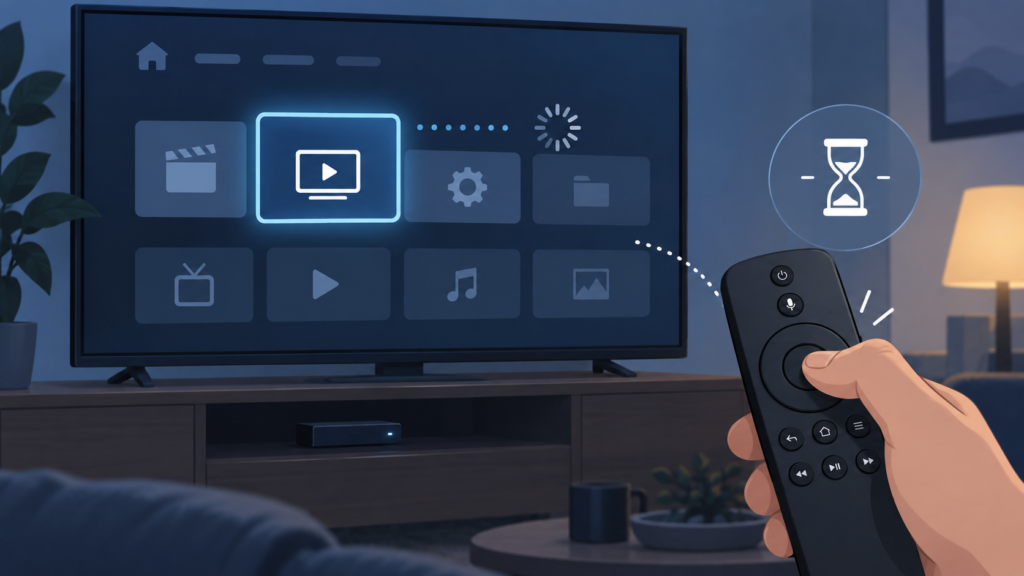
Quick answer: If an IPTV remote skips buttons on a Smart TV, first test the remote in the TV menu and another application, then reproduce the issue one key at a time inside the player. Check whether it affects every screen, one player view, one category, or one transition such as returning from the guide. Avoid rapid key presses, credential changes, unknown software, and destructive resets until the scope is clear.
IPTV Remote Focus Skips Buttons on Smart TV: Safe Troubleshooting Checks
This guide targets the long-tail problem “IPTV remote focus skips buttons on Smart TV.” It explains how to separate a remote-input problem from a player-interface, loading, display, or network symptom. The steps are designed for supported devices and authorized service access. Exact menu names vary by TV manufacturer, operating system, and player version, so treat the visible instructions on your device as the final reference.
How to define the remote focus problem
If an IPTV remote focus skips buttons on a Smart TV, the safest first step is to identify whether the problem belongs to the television remote, the player interface, or the application state. A focus problem can look like a service failure because the viewer cannot select a category, guide row, play control, or settings option. Start with a short, repeatable test instead of pressing buttons rapidly or deleting the player. Note the TV model family, player name, connection type, the screen where focus jumps, and whether normal television menus respond correctly.
Separate remote hardware from the IPTV player
The phrase “remote focus” describes the visible selection indicator that moves between buttons, rows, tiles, or menu items. It is different from a remote that has no power, a player that has stopped loading, or a stream that has failed. If the focus indicator is visible but moves past an item, the remote may be sending repeated input, the application may be receiving a held key, or the interface may be rebuilding while you navigate. Keeping these possibilities separate makes troubleshooting faster and avoids unnecessary account changes.
Run a slow-input test
Before changing settings, reproduce the symptom with the smallest possible sequence. Open the IPTV player, move one step left and one step right, then press the select button once. Repeat the same action on the guide, the channel list, and the player controls only if the problem appears in the first screen. Record whether one direction is affected, whether the selection wraps around, and whether the wrong button opens after a single press. A precise boundary is more useful than a general report that the remote is broken.
Check pairing and alternate controls
Next, compare the Smart TV home screen and one other legitimate application. If the remote skips buttons everywhere, start with batteries, pairing, infrared or Bluetooth line of sight, and the TV input state. If ordinary menus work but the IPTV player does not, keep the remote hardware unchanged and investigate the player interface, focus state, app version, or screen layout. If only one guide view is affected, compare the channel list and playback screen before treating the symptom as a service-wide issue.
Use a slow-input test. Press one arrow key and wait for the focus ring to settle before pressing another. A rapid sequence can be queued by the TV or application and can make a normal interface appear to skip. If a single press produces two movements, note that result. Test the same key in a text field or system menu without entering private information. This comparison helps distinguish a repeated physical input from a player-specific navigation issue.
Look for a stuck key or repeated input
If your remote has a voice, pointer, or air-mouse mode, temporarily return to the standard directional mode documented by the TV manufacturer. Pointer movement and directional focus are handled differently by some Smart TV interfaces. Do not install an unknown remote-control utility to solve the issue, and do not use a modified application that promises to unlock content. The goal is to compare the supported controls already available on the television, not to add an unverified layer.
Wait for guide and category loading
Check whether a key is physically sticking. Remove the batteries only after closing the player, wait briefly, and use the TV’s normal power or input controls to confirm whether the focus stops moving. If the repeated movement disappears without batteries, the remote or its pairing state deserves attention. If the focus problem remains in a connected keyboard or alternate controller, the application or TV interface is more likely involved. Keep the test short and restore the normal controller before continuing.
Review layout and focus settings
A player can also lose focus after the guide refreshes, a category filter changes, or an overlay closes. For example, the selection may be returned to the first item while the viewer expects it to remain on the previous row. Open the same view again, wait until visible labels and guide data finish loading, and then move one step at a time. If focus behaves normally after the screen finishes loading, record the loading boundary rather than repeatedly reinstalling the player.
Check the player’s layout choices when they are available. Compact grids, list views, picture-in-picture panels, and full-screen overlays may expose different focus targets. A setting that changes tile size can alter how many items fit on a row and can make a selection appear to jump. Change one display option, test the same route, and restore the original value when the result is not helpful. Do not change picture mode, account details, or network security settings for a navigation symptom without evidence.
Check display scaling and accessibility
Device orientation and display scaling can affect the apparent location of a focus ring. If the TV has a zoom, overscan, screen-fit, or accessibility magnification option, note whether the problem occurs in the television menu as well as in the player. A cropped edge can hide the next focus target, while a large text mode can rearrange the interface. Review the TV’s own documentation and test a neutral display setting once. Avoid assuming that a changed picture mode means the IPTV service is unavailable.
Use safe application-state recovery
The application state is another useful layer. Close the player through its normal exit route, reopen it, and wait for the home screen to finish loading. If the TV provides a force-stop option, use it only for the affected application. Clear temporary cache before considering application data. Clearing data can remove local preferences and require the authorized setup details again, so it should be treated as a later step. Never publish or send private playlist URLs, passwords, access tokens, or payment details while asking for help.
Review official updates only
An app update can change focus behaviour without changing your account. Check the official TV application store and the manufacturer’s normal update screen. Record the installed version before and after any update, and test one known route after the update completes. If the issue began immediately after a system or app update, that timing is valuable evidence. Do not download a package from an unknown website or install a modified player as a workaround; it can create privacy and compatibility risks that are harder to diagnose.
Network conditions can affect focus indirectly when a player waits for guide data, artwork, or a category response. Test the television’s network connection and then open another ordinary application that loads images or menus. If several apps are slow, review Wi-Fi placement, interference, and router workload. If only the IPTV player is slow while other apps respond normally, compare a smaller category or a different guide view. Do not change credentials to fix a screen that is responding slowly unless the evidence points to an authentication message.
Test the network layer without guessing
If the television is connected through a guest network, parental control profile, DNS filter, or VPN configuration, document that fact before changing it. Those settings may affect data requests, but they are not universal solutions for navigation problems. A controlled comparison on the normal private home network can help, provided you are authorized to use that network. Restore any temporary change after testing. Never advise a reader to bypass regional restrictions, disable security controls permanently, or use an unlicensed source.
Handle guest networks and temporary settings
The following checklist keeps the test reversible: confirm the remote works in the TV menu; press one key at a time; compare the home screen and another application; reproduce the issue in one player view; wait for guide data to load; close and reopen the player; check the official app version; test another layout only once; note whether network loading is involved; and record what still works. This sequence creates useful evidence without deleting local settings or exposing account information.
A reversible troubleshooting checklist
When the focus skips only after pausing, returning from the guide, or changing categories, describe that transition precisely. A lifecycle issue may be different from a permanent navigation failure. Test a short pause and a longer pause, then repeat the route after a normal close and reopen. If focus returns to the first item after every transition, mention that behaviour. If it skips only when guide artwork is still loading, mention the visual loading state and the approximate wait.
When the focus skips only on one channel list or category, compare a second category with a similar number of items. A large list can require more loading or sorting work than a small one, while a filter may change the visible order. If the player shows the wrong title, missing category, or incomplete guide details, record those separately from the remote symptom. The channel list, guide metadata, player controls, and video stream may be different interface layers.
Compare pause, standby, and guide transitions
A useful support report contains the device model family, TV operating system if visible, player name and version, remote type, connection type, exact screen, exact key sequence, and whether the TV menu and another app work. Include the approximate time only when it helps compare a repeatable condition. A redacted photograph of the screen can show the visible focus ring, but it should not show usernames, passwords, private URLs, tokens, payment details, or personal information.
Compare categories and player views
Do not send a full account screenshot to a public group. Support should not need a secret credential to determine whether a remote sends duplicate input or whether a player loses focus after a guide transition. Use the site’s WhatsApp support button or the official Telegram support group for a private handoff. State what you tested and what remained functional. This allows the next person to choose a proportionate check instead of asking you to reset everything.
What to include in a support report
For related setup context, review the IPTV setup guide, the IPTV service overview, and the services page. The device center can help separate Smart TV requirements from player requirements. These links are navigation aids, not a substitute for confirming the current supported device list and service terms before subscribing.
A focus problem does not automatically prove that the account is inactive, the stream is unavailable, or the provider has changed anything. It is better to classify the symptom by scope: every TV menu, every app, one player, one view, one category, or one transition. Scope gives you a reason to choose the next test. It also prevents a common troubleshooting error in which a viewer changes several unrelated settings and then cannot explain which change affected the result.
Keep passwords and private URLs out of messages
If a normal close and reopen fixes the issue only temporarily, check the trigger rather than repeating the same reset. Does it return after standby, after a guide refresh, after the TV has been idle, or after a category contains many items? Check ventilation and available storage if other apps also become slow, but do not claim that storage or heat is the cause without a comparison. Record observations as observations, and mark assumptions as questions for support.
Related TVMemberLink setup resources
Before replacing a working remote, test it with the TV’s documented pairing procedure and fresh batteries. Before resetting the player, confirm that you know the authorized setup method and can access the service instructions privately. Before changing the router, test another application and, where appropriate, a temporary wired connection. Each action should answer a question. If it does not answer one, defer it. This is safer for households that rely on the TV for other services and avoids turning a small interface symptom into a larger setup task.
Why scope matters more than assumptions
The same method applies when the issue appears on a supported external streaming box rather than a built-in Smart TV app. Identify whether the remote controls the system interface, the player, or both. Check the HDMI input and device wake state, then compare the box menu with another app. Do not assume that every external box supports the same player controls or login format. Compatibility should be confirmed from the current device and service instructions, not inferred from a similar-looking menu.
FAQ: Is a skipped focus target always a broken remote? No. If the remote works normally in the TV menu and another application, the player’s focus state, layout, loading process, or app version may be involved. If one press produces several movements everywhere, investigate the remote input or pairing first. Use the smallest comparison that can separate those possibilities.
When a temporary fix keeps returning
FAQ: Should I reinstall the IPTV player immediately? No. Start with a slow-input test, another app, another player view, a normal close and reopen, and the official version check. Reinstallation can erase local preferences and makes it harder to compare the original state. Use it only when the symptom is isolated to damaged or misconfigured application files and the authorized setup path is available.
Before replacing hardware or resetting the player
FAQ: Can changing DNS or picture mode fix remote focus? Not in every case. DNS may affect data loading, while picture scaling may affect how a focus ring appears, but neither is a universal navigation repair. Test one relevant setting at a time, keep the original value recorded, and restore it if the symptom does not change. Avoid permanent security or network changes based on a single guess.
External streaming boxes and HDMI checks
FAQ: What should I send to support? Send the device type, player name and version, remote type, connection type, affected screen, exact reproduction sequence, and what happens in the TV menu and another application. Redact credentials and private URLs. Use the WhatsApp button on the site or the official Telegram group rather than posting sensitive information in a public comment.
Conclusion: IPTV remote focus skipping buttons on a Smart TV is best handled as a controlled interface diagnosis. Start by checking the remote outside the player, then compare the player scope, wait for data to load, test one layout or app-state change, and document the transition that triggers the issue. Keep account details private, avoid unverified software, and use the setup, service, device, WhatsApp, or Telegram support paths when a reproducible symptom remains.
FAQ and safe next steps
Is a skipped focus target always a broken remote?
If an IPTV remote focus skips buttons on a Smart TV, the safest first step is to identify whether the problem belongs to the television remote, the player interface, or the application state. A focus problem can look like a service failure because the viewer cannot select a category, guide row, play control, or settings option. Start with a short, repeatable test instead of pressing buttons rapidly or deleting the player. Note the TV model family, player name, connection type, the screen where focus jumps, and whether normal television menus respond correctly.
Should I reinstall the IPTV player immediately?
The phrase “remote focus” describes the visible selection indicator that moves between buttons, rows, tiles, or menu items. It is different from a remote that has no power, a player that has stopped loading, or a stream that has failed. If the focus indicator is visible but moves past an item, the remote may be sending repeated input, the application may be receiving a held key, or the interface may be rebuilding while you navigate. Keeping these possibilities separate makes troubleshooting faster and avoids unnecessary account changes.
Can changing DNS or picture mode fix remote focus?
Before changing settings, reproduce the symptom with the smallest possible sequence. Open the IPTV player, move one step left and one step right, then press the select button once. Repeat the same action on the guide, the channel list, and the player controls only if the problem appears in the first screen. Record whether one direction is affected, whether the selection wraps around, and whether the wrong button opens after a single press. A precise boundary is more useful than a general report that the remote is broken.
What should I send to support?
Next, compare the Smart TV home screen and one other legitimate application. If the remote skips buttons everywhere, start with batteries, pairing, infrared or Bluetooth line of sight, and the TV input state. If ordinary menus work but the IPTV player does not, keep the remote hardware unchanged and investigate the player interface, focus state, app version, or screen layout. If only one guide view is affected, compare the channel list and playback screen before treating the symptom as a service-wide issue.
Use a slow-input test. Press one arrow key and wait for the focus ring to settle before pressing another. A rapid sequence can be queued by the TV or application and can make a normal interface appear to skip. If a single press produces two movements, note that result. Test the same key in a text field or system menu without entering private information. This comparison helps distinguish a repeated physical input from a player-specific navigation issue.
TVMemberLink navigation and support
For related setup context, review the IPTV setup guide, the IPTV service overview, the services page, and the device center. Use the existing WhatsApp button or the official Telegram support group for a private handoff. These links are navigation aids, not a substitute for confirming the current supported device list and service terms before subscribing.
Final troubleshooting checklist
- Confirm the remote works in the Smart TV system menu.
- Test one key at a time and wait for the focus ring.
- Compare another legitimate application.
- Record the exact player screen and transition.
- Wait for guide data and artwork to finish loading.
- Close and reopen the player before clearing data.
- Use only official updates and supported applications.
- Keep passwords, tokens, private URLs, and payment details private.
- Use WhatsApp or the official Telegram support route for follow-up.
Conclusion
Conclusion: IPTV remote focus skipping buttons on a Smart TV is best handled as a controlled interface diagnosis. Start by checking the remote outside the player, then compare the player scope, wait for data to load, test one layout or app-state change, and document the transition that triggers the issue. Keep account details private, avoid unverified software, and use the setup, service, device, WhatsApp, or Telegram support paths when a reproducible symptom remains.
