
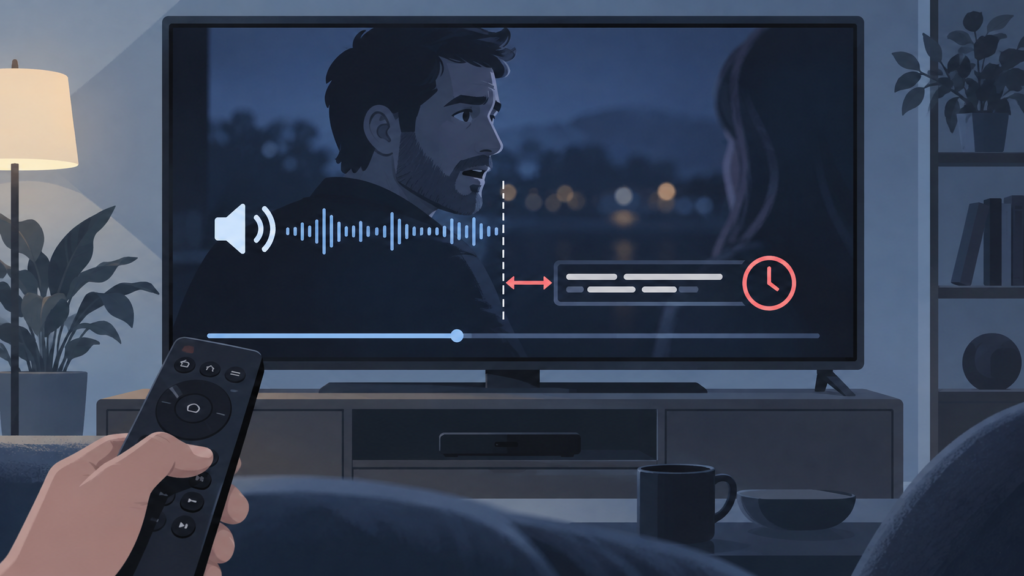
Quick answer: If IPTV subtitles are early or late on Android TV, first determine whether the mismatch affects one channel or every video. Check the selected subtitle track, reopen playback, and use a small player delay only after comparing another app. Do not change credentials for a lip-sync symptom.
IPTV Subtitles Out of Sync on Android TV: Safe Checks
Subtitle timing depends on the video source, the selected track, player processing, and sometimes the television audio path. A subtitle that is consistently early or late may be a source-track issue, while a mismatch that changes after pausing can be a local playback state.
Define the mismatch
Use a clear spoken sentence and note whether text appears before or after the speech. Test another programme and another app on the same Android TV. If only one programme is affected, record it. If subtitles and audio are both correct but video is delayed, compare the player and display path separately.
Step 1: Check subtitle track
Open player controls and verify the selected language track. Turn subtitles off and on once, then close the menu. If several languages exist, test one track and wait for the overlay to close. Avoid repeatedly switching tracks while the player is buffering.
Step 2: Reopen playback
Exit to the channel list, open another channel, and return. If the player has subtitle delay or sync controls, use a small reversible adjustment and return to zero if it does not help. The setup guide and IPTV service overview provide context.
Step 3: Compare device and output
Test another supported device or the Android TV speakers instead of an external soundbar. If the mismatch changes with the audio output, investigate TV or receiver processing. If it follows one channel on every device, record the channel and approximate offset.
Checklist
- Note early or late timing.
- Test another programme and app.
- Check language track.
- Toggle subtitles once.
- Reopen playback.
- Compare TV speakers and external output.
- Record device, app, channel, and offset.
FAQ
Why is only one programme affected?
Its source or subtitle track may have a different timing.
Should I change audio delay first?
First isolate the subtitle track, player, and output path.
How do I contact support?
Use the official Telegram group or WhatsApp with redacted evidence and no passwords.
Conclusion
Define the offset, check the track, reopen playback, and compare outputs before changing setup. Visit the services page or home page.
Use a controlled support record
Record the original state before making a temporary change. For subtitle timing, note whether text is early or late and whether another programme is affected. For search, record the exact short term, active filters, and whether manual browsing works. For a slow EPG, record the wait, category, date, and whether playback remains available. These boundaries make the report useful without changing credentials.
Use one variable at a time. Close an overlay, reopen a view, compare a smaller category, or restart the device once. Avoid clearing storage, reinstalling, changing passwords, or creating extra profiles until evidence supports that action. A reset can erase useful local state and create a new setup task.
Keep passwords, tokens, private URLs, payment details, and personal information out of screenshots. Use the website WhatsApp button or the official Telegram support group for a private handoff. Include device model, app version, affected view or channel, approximate time, and exact reproduction steps.
Next step
Review the setup guide, IPTV service page, and services page for navigation. Repeat any successful test during ordinary use before treating it as stable.
Document the boundary before resetting
Repeat the smallest relevant test after a brief pause and keep the same device, profile, and network. A one-time delay during loading is different from a problem that returns every time a track changes, a search opens, or the guide is selected. Record what remains functional as well as what fails. This helps distinguish a source, player, filter, or device issue.
For subtitle timing, compare another programme and another app, then note whether the offset changes with TV speakers or an external audio device. For search, use one short term, remove filters, confirm the keyboard input, and compare manual browsing. For a slow guide, compare a smaller category and another date while waiting for the channel list to finish loading. Keep the comparison fair and change one variable at a time.
Use normal close and reopen steps before a destructive reset. If a temporary setting helps, restore unrelated settings and verify the result during ordinary use. Do not clear storage, reinstall, change credentials, or create extra profiles until the evidence supports that step and setup information is available. Repeated resets can erase useful local state.
When contacting support, include the device model, app version, affected channel or view, approximate time, network or audio output when relevant, and the exact reproduction sequence. Redact usernames, passwords, private URLs, tokens, payment details, and personal information from screenshots. Support does not need private credentials to understand a device-level symptom.
Safe support handoff
Use the website WhatsApp button or the official Telegram support group for a private conversation. Explain what still works: playback, guide text, manual channel browsing, or audio in another app. A factual comparison is more useful than an unverified claim about a service-wide outage.
Review the setup guide, IPTV service page, and services page for navigation. Keep the next action proportional to the evidence and do not promise a particular result before the issue is isolated.
Keep the recovery reversible
A controlled note should state the action, the wait, and the result. For subtitles, say whether the offset remains on another programme. For search, say whether manual browsing finds the channel. For a slow EPG, say whether a smaller category opens faster and whether playback works during the wait. This prevents a local symptom from being described as a general outage.
Use one variable at a time and restore unrelated settings after testing. Avoid clearing app storage or reinstalling until setup information is available. Keep all credentials, private URLs, tokens, payment details, and personal information out of screenshots. Use established WhatsApp or Telegram support privately and include only device, app, view, timing, and reproduction details.
Repeat a successful test during ordinary use before treating it as stable. If the problem returns, use the same sequence and record the difference. This protects working configuration while giving support a clear next step.
Keep the next step proportional
Repeat the smallest relevant test and record what remains functional. For subtitle timing, compare another programme and note whether the offset changes with the audio output. For channel search, remove one filter at a time and compare manual browsing. For a slow guide, compare one smaller category and wait for the channel list to complete. This evidence helps distinguish source, player, filter, and device behaviour.
Use normal close and reopen steps before clearing storage or reinstalling. Keep the original settings recorded, restore unrelated changes, and do not send passwords, tokens, private URLs, payment information, or personal data. Use the website WhatsApp button or official Telegram support route with device model, app version, affected view, approximate time, and reproduction steps.
A concise support report is safer and more useful than repeated resets. Review the setup and service pages for navigation after the issue is isolated.
