
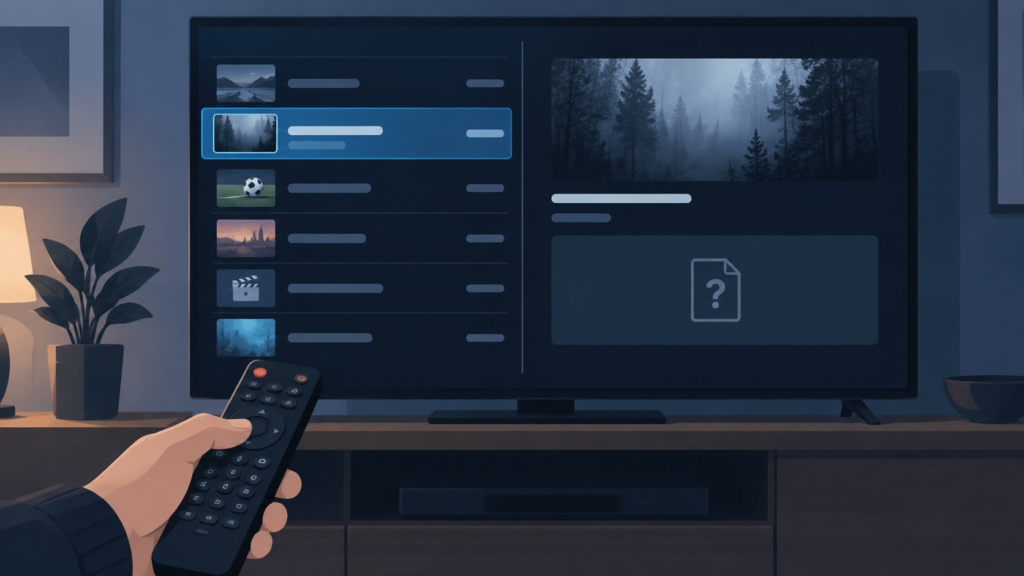
Quick answer: If IPTV EPG programme descriptions are missing on Smart TV while titles and times load, the description field may be unavailable for that entry, hidden by the layout, or still loading. Open another programme, change date once, and compare another category before resetting the app.
IPTV EPG Programme Descriptions Missing on Smart TV: Safe Checks
EPG entries can contain a title, start and end time, channel name, and optional description. These fields do not always load together. A guide can therefore remain useful even if the detail panel has no synopsis. The right diagnosis depends on whether descriptions are missing from one programme, one category, or the entire guide.
Define what remains visible
Open two different programme entries. Note whether titles, times, and channel names appear. If only descriptions are blank, focus on the detail panel or available guide fields. If the entire EPG is empty, use broader guide checks. Record the date and category.
Step 1: Open the detail panel correctly
Select a programme and press OK once. Wait for the detail panel. Close search, mini-player, and other overlays. Some Smart TV layouts show descriptions only in a separate panel or list view. Try standard list view if grid view hides long text.
Compare dates and categories
Move to the next guide date and return to today once. Test another category. If descriptions appear elsewhere, the missing field may be entry-specific or category-specific rather than a device-wide issue.
Step 2: Reopen the guide safely
Exit the EPG to the channel list, wait, and open it again. Restart the Smart TV normally if needed. Avoid clearing app storage or changing credentials. The setup guide and IPTV service overview provide navigation.
Step 3: Compare one device
Use the same guide date and category on another supported device. If titles and times match but descriptions differ, record the device and app versions. If descriptions are missing everywhere while playback works, report the exact category and date.
Checklist
- Open two programme entries.
- Record visible title and time fields.
- Try detail and list views.
- Compare another date and category.
- Reopen guide and restart normally.
- Compare one supported device.
- Record model and app version.
FAQ
Does a missing synopsis mean the guide is broken?
No. Descriptions can be optional while titles and times work.
Should I reinstall the app?
Not first. Compare entries, dates, layouts, and devices.
How do I contact support?
Use the official Telegram group or WhatsApp with redacted details and no passwords.
Conclusion
Compare entries, dates, categories, layouts, and one device before changing setup. Visit the services page or home page.
Use a repeatable comparison
Record the original state before a temporary change. For EPG scrolling, note the row where the list jumps and whether the guide is still loading. For hidden controls, note whether video and audio continue and whether one remote press wakes the overlay. For missing descriptions, record which fields remain visible and whether another programme has a synopsis. These boundaries make the report more useful than a general statement that the app is broken.
Use one variable at a time. Close an overlay, reopen a view, compare a smaller category, or restart the device once. Avoid clearing app storage, reinstalling, changing credentials, or creating profiles before the evidence supports that step. A disruptive reset can remove useful local state and create a new configuration task.
Compare another channel, date, category, view, or supported device only when it helps isolate the scope. Keep the same network and profile during the comparison. Record the device model, app version, approximate time, and exact reproduction steps. Redact usernames, passwords, private URLs, tokens, payment details, and personal information from screenshots.
Safe support handoff
Use the website WhatsApp button or the official Telegram support group. Explain what still works as well as what fails: for example, whether playback is normal while EPG focus jumps, whether controls return in windowed mode, or whether titles and times remain while descriptions are blank. This helps support choose a proportionate next check.
Review the setup guide, IPTV service page, and services page for navigation. Return to the home page for the main entry point.
Document the boundary before resetting
A useful troubleshooting note says when the symptom begins, what screen was open, what the remote did, and what remained functional. For a scrolling guide, mention whether a shorter category stays stable. For player controls, mention whether one press brings back the overlay and whether windowed playback differs. For missing programme descriptions, mention whether titles, times, and detail panels work on other entries. These facts help separate loading, focus, layout, and content-field issues.
Repeat the same test after a normal close and reopen. If the result changes only after a full restart, record that lifecycle boundary. If another device behaves differently, keep the same guide date and category so the comparison is fair. Do not treat one successful reload as proof that the problem cannot return; verify once during ordinary use.
Keep the recovery reversible. Do not clear storage, reinstall, change credentials, or create extra profiles until setup information is safely available and the evidence points to that action. Use normal app and device restart options first. Restore unrelated settings after testing.
Support does not need passwords, tokens, private access URLs, payment details, or personal information. Send only the device model, app version, affected view or channel, approximate time, and redacted screenshots through the site WhatsApp button or official Telegram group.
Next step
Review the setup guide, IPTV service page, and services page for navigation. A concise, factual comparison is more useful than an unverified claim about a service-wide issue.
Keep the handoff concise
Before contacting support, repeat the smallest relevant test once and record the outcome. A guide issue should identify the row, category, or date; a player issue should identify the control and playback state; a description issue should identify which fields remain visible. This prevents several unrelated changes from being mixed together.
Use the established WhatsApp or Telegram support route privately. Redact all credentials and private service information. A device model, app version, exact reproduction sequence, approximate time, and description of what still works are enough for an initial investigation.
After a temporary change, return unrelated settings to their original values and verify the result during ordinary use. Do not promise a particular cause or indexing result until evidence supports it.
Repeat the smallest relevant test after a brief pause and keep the same device, profile, and network. Record what remains functional as well as what fails. Do not clear storage, reinstall, change credentials, or create extra profiles before the evidence supports that step. Keep passwords, tokens, private URLs, payment details, and personal information out of screenshots. Use the website WhatsApp button or official Telegram support route for a private handoff, and include the device model, app version, affected view, approximate time, and exact reproduction sequence.
A controlled report is more useful than repeated resets. Restore unrelated settings after a temporary test and confirm the result during ordinary use.
Repeat the smallest relevant test after a brief pause and keep the same device, profile, and network. Record what remains functional as well as what fails. Do not clear storage, reinstall, change credentials, or create extra profiles before the evidence supports that step. Keep passwords, tokens, private URLs, payment details, and personal information out of screenshots. Use the website WhatsApp button or official Telegram support route for a private handoff, and include the device model, app version, affected view, approximate time, and exact reproduction sequence.
A controlled report is more useful than repeated resets. Restore unrelated settings after a temporary test and confirm the result during ordinary use.
Keep the final report concise and factual.
