
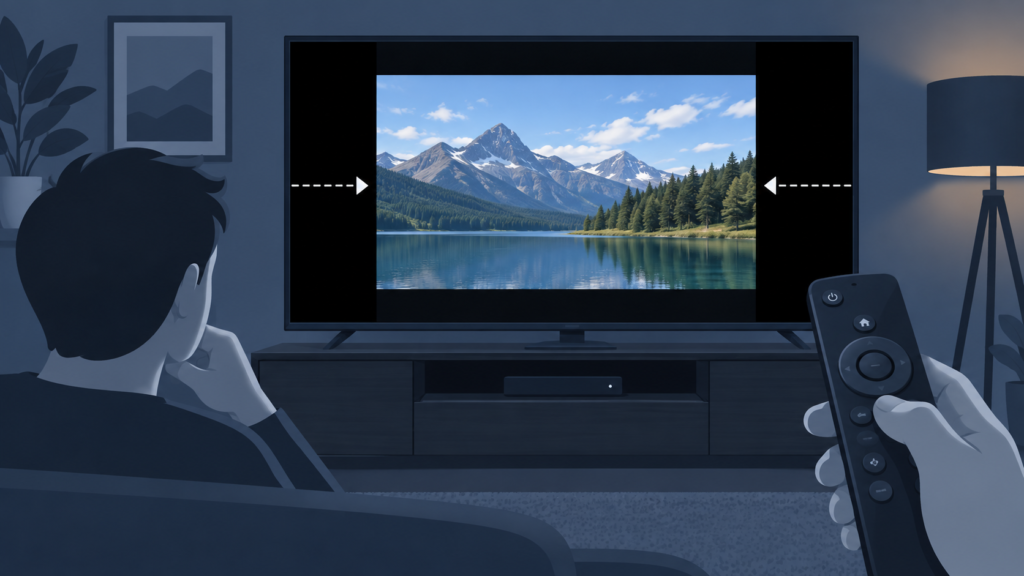
Quick answer: If black bars appear on only one IPTV channel on Android TV, the source may use a different aspect ratio or the player may be preserving the original frame. Compare another channel, check the player’s original or fit option, and leave the television picture mode on auto or screen fit. Black bars are not automatically a connection or account fault.
IPTV Black Bars on One Channel on Android TV: Safe Picture Checks
Black bars can appear above and below, or beside, a video when the source shape does not match the television screen. A modern display often uses a wide frame, while some content is produced in a narrower format. The player may preserve that shape instead of stretching the image. The first task is to decide whether the bars are consistent with the content or caused by a local setting.
Define the pattern
Check whether the bars appear on every programme from one channel or only one title. Compare a second channel and another app on the same Android TV. If only one channel has bars while the image is proportioned correctly, the source format or channel-specific player mode is a likely explanation. If every app has bars, check the TV picture mode.
Step 1: Test the player aspect setting
Open playback controls and look for original, fit, auto, crop, zoom, or stretch. Choose original or auto first. Do not choose stretch while diagnosing because it can distort faces and circles. Close the controls and change channels once to see whether the setting applies globally or only to the current playback.
Check TV screen fit
Open television picture settings and choose screen fit, original, or auto. Disable zoom and overscan for the test. A TV setting should not be changed together with several player options, or the result will be unclear.
Step 2: Compare routes and devices
Launch the channel from the channel list and from the EPG if both routes exist. If bars appear in one route only, record that behaviour. Compare one supported device when possible. The setup guide and IPTV service overview provide general navigation.
Checklist
- Compare another channel and another app.
- Note whether bars are top/bottom or side-to-side.
- Choose original or auto player aspect.
- Use TV screen fit and disable zoom temporarily.
- Compare channel-list and EPG playback.
- Record device, app version, channel, and title.
FAQ
Are black bars always a problem?
No. They can preserve the source aspect ratio without distortion.
Should I stretch the picture?
Not first. Stretching can distort content; use original or auto for diagnosis.
What should I send support?
Share the channel pattern and redacted screenshot through the official Telegram group or WhatsApp button, never passwords.
Conclusion
Compare sources, use original or auto aspect settings, and check screen fit before changing service details. Visit the services page or home page.
Keep the diagnosis controlled
Record the original setting before making a temporary change. For black bars, note whether the effect appears on every channel or only one source. For a filter, record whether the selection disappears when leaving the guide, closing the app, or restarting Firestick. For a settings crash, identify the exact submenu and whether playback continues. These boundaries make the report useful without changing credentials or deleting local data.
Use the least disruptive recovery first: close an overlay, reopen a view, restart the app, or restart the television once. Do not clear storage, reinstall, or create extra profiles until the evidence supports that step and setup information is available. Repeated resets can erase the state that explains the problem.
Support reports should include device model, app version, affected channel or screen, approximate time, and a short reproduction sequence. Redact usernames, passwords, private URLs, tokens, payment details, and personal information. Use the site WhatsApp button or the official Telegram support group for follow-up.
Next step
Review the setup guide, IPTV service page, and services page for navigation. A clear comparison is more useful than an unverified claim about a service-wide issue.
Use a repeatable comparison
Repeat the smallest relevant test after a brief pause and keep the same device, profile, and network. A one-time display change during loading is different from a problem that returns every time a category changes, a guide opens, or a menu is selected. Record what remains functional as well as what fails. Playback, guide text, navigation, and audio can have separate causes.
For picture geometry, compare a second channel and another app while using the same TV picture mode. For a Firestick filter, compare one category, the default list, and one normal close before testing a restart. For a Smart TV crash, avoid the failing settings route and check whether other apps open settings normally. One variable at a time prevents unrelated changes from obscuring the result.
If a temporary change helps, restore unrelated settings after testing and repeat the result during ordinary use. Do not send passwords, tokens, private URLs, payment details, or personal information. Redacted screenshots and a short sequence of actions are enough for initial support.
Use the website WhatsApp button or the official Telegram group for a private handoff. Review the setup guide, IPTV service page, and services page for navigation. Return to the home page for the main entry point.
Safe handoff notes
Before asking for help, write the order of actions and the result after each action. For black bars, include whether the image is proportioned and whether the issue affects every source. For a filter, state when the selection disappears. For a crash, identify the exact submenu and whether playback remains available. These details help separate display, local preference, and app menu problems.
Use normal close and reopen steps before a destructive reset. If an update or temporary setting changes the behaviour, record the version and restore unrelated settings. Avoid making claims about a service-wide outage based on one screen. A controlled comparison protects working setup data and gives support a clear next action.
Keep all evidence private. Hide account names, passwords, tokens, private access URLs, payment information, and personal contact details. Use the site WhatsApp button or official Telegram route for a private conversation. The setup guide and service pages can provide the relevant navigation after the issue is isolated.
Repeat the successful test after ordinary use to confirm that the improvement persists. If the symptom returns, use the same steps and note the difference rather than changing several settings at once. This creates a reliable troubleshooting history without exposing sensitive information.
Keep the next action proportional to the evidence. A channel-only picture issue calls for a source and aspect comparison; a filter issue calls for a save and profile test; a menu crash calls for a safe route around the menu and version check. This approach keeps the working parts of the app available while the isolated problem is documented. Repeat the smallest test after a normal session, and communicate only through the established support routes.
Do not treat a troubleshooting check as a guarantee of indexing, service availability, or a particular result. It is simply a structured way to gather reliable device evidence while protecting private information.
Keep the next action proportional to the evidence. A channel-only picture issue calls for a source and aspect comparison; a filter issue calls for a save and profile test; a menu crash calls for a safe route around the menu and version check. This approach keeps the working parts of the app available while the isolated problem is documented. Repeat the smallest test after a normal session, and communicate only through the established support routes.
Do not treat a troubleshooting check as a guarantee of indexing, service availability, or a particular result. It is simply a structured way to gather reliable device evidence while protecting private information.
Record the result clearly and keep private details out of every support message.
