
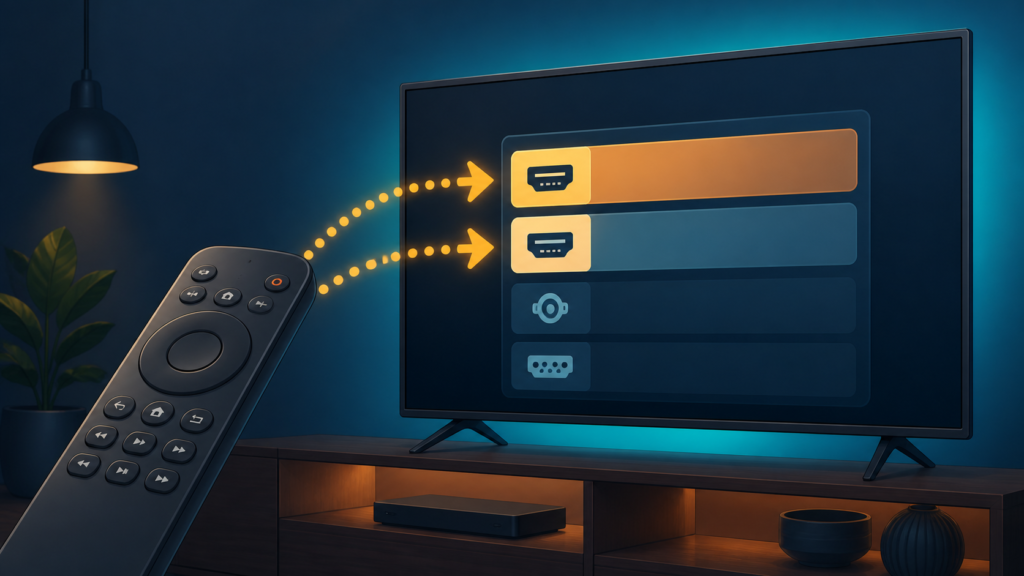
Quick answer: If an IPTV remote registers one press as two, first test a single key on the device home screen and inside the player. Then check batteries, a stuck button, remote mode, accessibility settings, and input response before unpairing or resetting the device.
IPTV Remote Double Pressing: Button and Device Checks
An IPTV remote that double-presses can make channel navigation, guide selection, and settings changes difficult. The cause may be a worn or sticky button, weak batteries, queued input, accessibility behavior, remote mode, or a busy player. Separate a physical input problem from a player response problem with one key at a time.
Confirm whether the remote or player is responsible
Press one navigation key once on the device home screen. Watch whether the highlight moves once or twice. Repeat with one different navigation key, then test inside the IPTV player. Do not rapidly press the button while observing the result.
- One button double-presses while others work.
- Every button repeats on every screen.
- Only guide navigation repeats.
- The highlight moves once but the player opens twice.
- Delay makes one press look like two.
These patterns are different. Record the screen, key, and response before changing batteries or pairing settings.
Step 1: Check for a stuck or obstructed button
Inspect the affected key without opening the remote or using liquids. A button that feels different from nearby keys may be physically sticking. Test another key with similar function. Avoid force because it can damage the remote and create a second fault.
If only one key repeats, use another documented control for a short comparison. If the alternative works once, record that result and avoid claiming a permanent repair. A hardware issue may require the remote manufacturer’s support or a compatible replacement.
Step 2: Check batteries and connection mode
Replace or recharge batteries using the manufacturer’s normal procedure. Test one navigation key after the change. If the remote supports TV, box, receiver, or source modes, confirm the intended target. A mode mismatch can make commands appear inconsistent.
For infrared remotes, perform one direct line-of-sight test with the sensor unobstructed. For Bluetooth or another wireless remote, review its documented connection state. Do not remove every saved accessory before confirming that the remote is the source of repeated input.
Step 3: Compare home screen, guide, and player
Use the device home screen, a simple player menu, and the guide as three comparison points. If the remote double-presses everywhere, focus on the remote, batteries, and device input handling. If only the guide repeats, focus on queued input or guide responsiveness.
Wait for each screen to finish loading before testing. A busy interface can process queued input later, making a single press look duplicated. Stop pressing and allow one normal response before deciding that the physical button repeated.
Step 4: Review accessibility and input settings
Check documented accessibility features related to key repeat, slow keys, or navigation behavior. Device options vary, so record the exact label. Make one change for a controlled comparison and restore the original setting if it does not help.
Do not change accessibility, remote mode, display, and player settings together. Several changes can mask the original trigger and affect other household users.
Step 5: Check player state and device resources
See whether the device home screen responds normally and whether other applications open promptly. Check available storage and close unrelated applications through normal controls. A busy device can delay interface updates, although that does not prove it caused duplicate input.
Record player and device software versions before updating. Use official update paths and test the same key on the same screen afterward. Avoid reinstalling the IPTV player for a remote symptom unless the player alone is affected and normal remote checks are complete.
Step 6: Compare another remote or device
If another compatible remote is available, test one key on the same screen. If the second remote works normally, compare batteries, target mode, and physical button behavior. If both remotes repeat only in the player, focus on the player interface or device responsiveness.
When practical, compare the same player on another supported device. This can show whether the response pattern follows the remote, player, or device. It does not prove a permanent cause. Share only device, player, key, screen, and response details.
Practical troubleshooting checklist
- Test one key once on the home screen.
- Compare a second key and the player.
- Inspect for a stuck button.
- Check batteries and remote mode.
- Test line of sight or documented connection.
- Wait for menus to finish loading.
- Review one accessibility setting.
- Compare another remote or device.
When to request help
Review the IPTV service page and services page. The official Telegram support group is available. Share device, remote type, key, screen, battery result, connection state, and response pattern. Never send passwords or private codes.
FAQ
Why does only one button double-press?
The button may be sticking or worn. Compare another key and use the manufacturer’s support process if the behavior remains.
Why does the remote repeat only in the guide?
The guide may still be loading or processing queued input. Wait once and compare a simple menu.
Should I unpair the remote?
Not first. Check batteries, target mode, physical button behavior, and documented connection state.
What should support receive?
Device, remote type, key, screen, battery result, connection state, and response pattern are useful. Keep credentials private.
Conclusion
An IPTV remote double-pressing should be isolated across buttons, batteries, target mode, connection, queued input, accessibility settings, player state, and device comparison. Use one key at a time. Start with the TVMemberLink home page.
During a controlled test, keep the same screen open and use the same single key after each change. Record whether one press creates one movement, two movements, or a delayed movement. This helps distinguish a physical button problem from a busy interface that processes queued input later.
If the behavior changes after replacing batteries, document the result without promising that batteries were the only cause. If another compatible remote works normally, compare the target mode and button behavior. Restore temporary settings after testing and never include passwords or private access codes in a support screenshot.
Test a second screen only after recording the first result. If one press repeats in the home screen and player, the remote or device input path deserves attention; if it repeats only in a large guide, wait for the guide to finish loading and compare a simple menu.
Use the same key and the same distance for each comparison. A short, repeatable record is safer than a broad reset that disconnects other household accessories or removes useful player preferences.
Note whether the device shows a highlight movement, opens a screen twice, or simply responds late. These are separate observations, and the distinction helps support choose a safe next test without requesting private account information.
Keep private credentials out of every report.
Use factual button names and avoid guessing the internal cause.
