
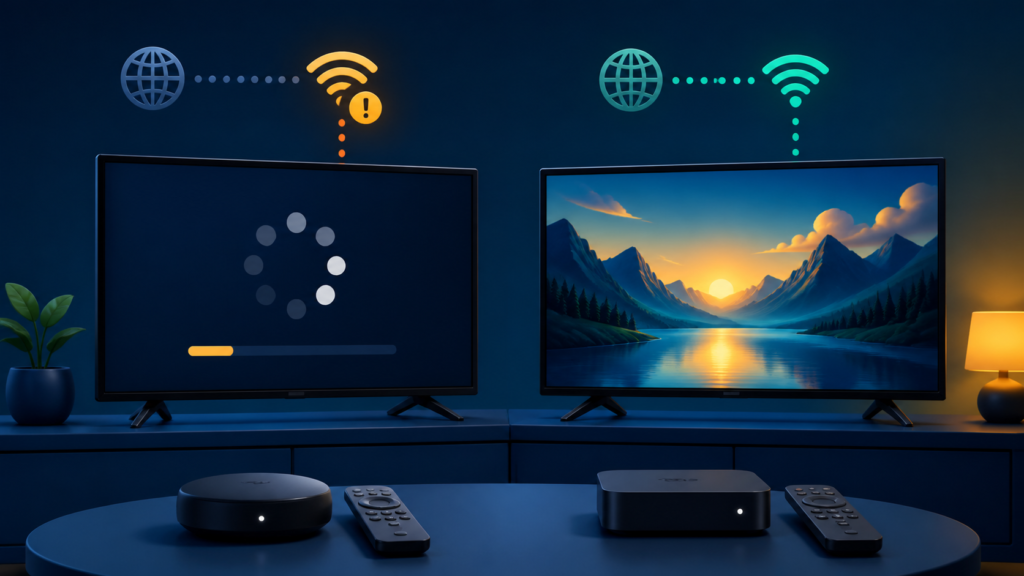
Quick answer: If IPTV buffers on only one device, compare the same programme and player on another supported device, then check that device’s Wi-Fi or wired path, storage, updates, background activity, and player settings. Avoid changing the service account before proving the symptom follows the device.
IPTV Buffers on One Device Only: Network and Player Checks
IPTV buffering on one device while another works can come from local signal conditions, a device setting, player state, storage pressure, software version, or a difference in the connection path. The comparison is useful, but it does not prove a single cause. Test the same item with one controlled change at a time.
Confirm the comparison is fair
Use the same supported player and, where practical, the same programme on both devices. Note whether buffering means a spinning indicator, repeated pauses, low quality, or a complete stop. These symptoms should not be treated as identical. Record the approximate time and whether the other device played normally.
- Only one device pauses while another plays.
- Every programme buffers on the affected device.
- Only one group or item buffers.
- Buffering happens after standby or at startup.
- Video quality drops before a pause.
Do not rapidly change channels during the first test. Rapid input can create queued transitions and hide the original buffering pattern.
Step 1: Check the device connection path
Identify whether the affected device uses Wi-Fi, Ethernet, a mesh node, or another network path. Check the device’s connection status through its normal settings. If Ethernet is used, confirm the cable is seated and the device reports a wired connection. If Wi-Fi is used, note the network band and signal indication without claiming a specific speed.
Compare the affected device in the same room and connection position as the working device where possible. A different location can create a different signal environment. Do not move the router or change several network settings until the original position and result are recorded.
Step 2: Test another application
Open one other supported streaming application on the affected device. If it also pauses, focus on the device connection, background activity, or device resources. If it plays normally while the IPTV player buffers, focus on player version, local state, programme comparison, and player network handling.
This is a diagnostic comparison, not a guarantee. Record whether the other application played the same type of video smoothly, but avoid making claims about its provider or performance. Keep account details and private access data out of screenshots.
Step 3: Check background activity and storage
Close unrelated applications using the device’s normal controls and check available storage. A device with limited free space may handle cache and guide data differently, but storage is only one possible factor. Do not delete personal files or unrelated apps simply to test a theory.
Check whether the device is unusually warm or whether menus respond slowly. Avoid unsupported temperature or speed claims. The useful observation is whether the home screen, settings, and another application remain responsive before the IPTV stream is tested.
Step 4: Review player and device updates
Record the IPTV player and device software versions before updating. Install updates through the official platform path. After an update, test the same programme and compare one working device. An update can reset preferences, so note the new player state instead of assuming an improvement is permanent.
Review only documented player options related to buffering, decoder, or stream behavior. Change one option at a time, then reopen the same programme. Do not change decoder, resolution, network, and account settings together.
Step 5: Compare wired and wireless carefully
If the device supports both connection types, one controlled comparison can help. Record the original connection, change only the connection path using normal device procedures, and test the same item. Restore the original path after the comparison if needed.
A wired test that works does not prove Wi-Fi is always the cause, and a wireless test that fails does not prove the player is broken. Rooms, hardware, router load, and time can change the result. Report the exact conditions instead of promising a universal fix.
Step 6: Check item and time patterns
Compare one item that buffers with one item that does not on the same device. If the symptom is limited to one item or group, record that selectivity. If every item buffers, the device or player path becomes more relevant. Note whether the behavior occurs at startup, after a pause, or after several minutes.
Do not infer channel counts, service capacity, or legal status from buffering. Limit the report to the visible playback behavior and the controlled comparisons completed.
Practical troubleshooting checklist
- Define the buffering symptom.
- Compare the same item on another device.
- Identify Wi-Fi or wired path.
- Test one other application.
- Check storage and device responsiveness.
- Record versions before updating.
- Change one documented player option.
- Report conditions without credentials.
When to request help
Review the IPTV service page and services page. The official Telegram support group is available. Share device, player, connection path, item comparison, version, storage state, and exact symptom. Never send passwords or private tokens.
FAQ
Why does only one device buffer?
The devices can differ in connection path, player version, storage, local state, or display and decoder settings. Compare the same item and record the conditions.
Should I change the router first?
Not first. Check the affected device path and compare another application before changing shared network equipment.
Why does one item buffer while others work?
The item may have a different playback or metadata condition. Compare another item and report the selective behavior.
What should support receive?
Device, player, connection path, item comparison, versions, storage state, and symptom timing are useful. Keep credentials private.
Conclusion
IPTV buffering on one device should be isolated across connection path, device resources, storage, player state, updates, item behavior, and controlled comparison. Use one change at a time. Start with the TVMemberLink home page for general information.
Keep the working device available for the entire comparison and test at a similar time. A router, household device, or programme can change between tests, so write down the conditions rather than assuming the result is permanent. Compare one stream, one player, and one connection path before applying broader changes.
If the affected device improves after closing another application, record that observation without claiming a fixed resource limit. If it improves after reconnecting Wi-Fi, record the reconnect sequence and the original network path. Restore normal settings after testing, and keep passwords, private list URLs, and access tokens out of screenshots.
A useful support note can state whether the home screen was responsive, whether another application played normally, whether one programme or every programme buffered, and whether the behavior changed on wired or wireless connection. These facts identify the next safe layer without requiring private service information.
Avoid repeated speed tests or unsupported promises about playback quality. The goal is to reproduce the symptom under known conditions, not to create a new network configuration that cannot be compared with the original.
