
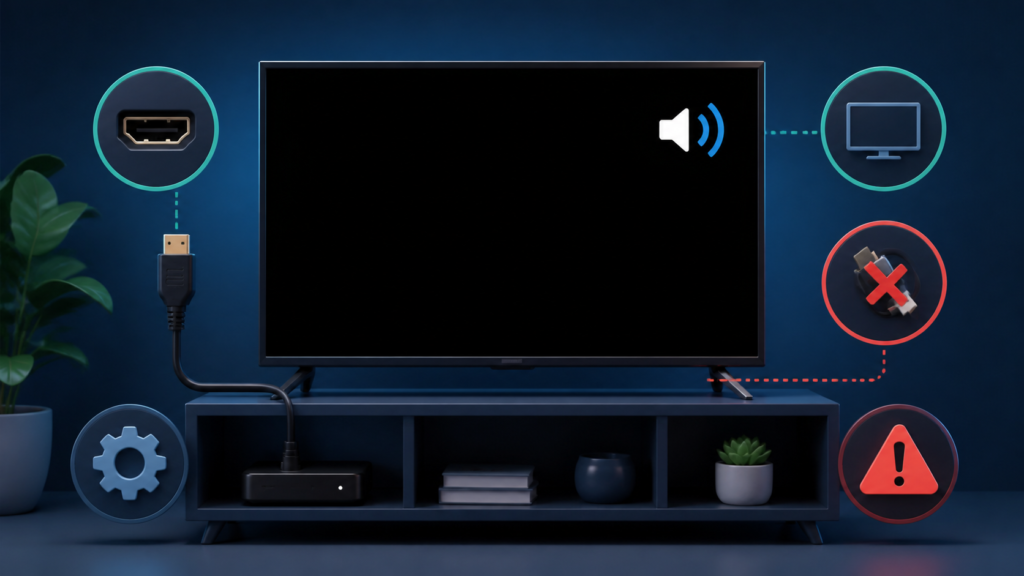
Quick answer: If the IPTV remote volume buttons are not working, first check whether the remote controls the television, the streaming device, or only the player. Test the on-screen volume control and another application, then check mute, output selection, remote mode, and batteries before unpairing or resetting anything.
IPTV Remote Volume Buttons Not Working: Device Checks
When IPTV remote volume buttons are not working, the problem may be a remote-control mode, an audio output setting, a mute state, a television control path, or an application that does not own the volume function. The player can still stream normally while volume control fails. Separating playback from remote behavior prevents unnecessary changes to the service configuration.
Understand which device owns volume
Many streaming setups contain a television, a streaming box or stick, and an IPTV player. The remote may send volume commands to the television while navigation commands go to the streaming device. In another setup, an external soundbar or receiver owns volume. Before troubleshooting, identify which device should respond to the volume key.
Press volume up once while watching the IPTV player and observe whether an on-screen volume indicator appears. Do not press repeatedly during the first test. If the television indicator changes, the remote path is working and the player may simply not display its own volume control. If nothing changes, test the same key on the home screen or another application.
Step 1: Check mute and visible output
Confirm that mute is off on the television and any connected audio device. Then check whether sound is audible from the expected output. A Bluetooth speaker, HDMI receiver, optical device, or eARC connection can make the television’s own volume keys behave differently. Record the visible output selection before changing it.
Use the player’s on-screen volume control if one exists. If on-screen volume changes but the physical remote does not, focus on the remote path. If neither changes and there is no sound, focus on output selection and audio state. These are separate symptoms even when they appear at the same time.
Step 2: Test navigation and another application
Check whether the same remote can move through the IPTV player menus. If navigation works but volume does not, the remote has some connection to the device, but volume commands may be assigned to another target. If navigation also fails, check batteries, line of sight where relevant, pairing state, and the remote mode described by the manufacturer.
Open another supported application and test volume once. If volume fails everywhere, the television or remote configuration is a stronger suspect. If volume fails only inside the IPTV player, compare the player’s audio settings and full-screen behavior. Do not infer a service-account problem from a remote-only symptom.
Step 3: Check remote mode and control target
Some remotes have a TV, box, receiver, or source mode. A mode change can leave navigation working while volume targets the wrong device. Use the documented setup procedure for the specific remote and television. Avoid guessing a long key combination because different models use different commands.
If the remote uses infrared, check that the sensor is not blocked and that the remote is aimed at the intended device for a controlled test. If it uses Bluetooth or another wireless link, check the device’s documented connection state. Do not remove every saved accessory until you know that the remote is the target of the problem.
Battery and button checks
Replace or recharge batteries when the manufacturer procedure supports it. Test one volume key and one navigation key after the change. A single worn button can behave differently from the rest of the remote. Keep the observation factual; a weak battery can cause intermittent behavior, but the exact cause requires device-specific testing.
Step 4: Review audio output settings
Open the device audio settings and confirm the selected output. Some output modes pass volume control to an external device. A fixed-volume digital output may not respond to the television remote in the expected way. If the menu offers a documented control mode, note the original value and make one change for comparison.
Check whether volume normalization, passthrough, or receiver control is enabled. These options can change how the device hands audio to a television or sound system. Do not change several audio modes together. Reopen the player after saving one setting and test a short item.
Step 5: Compare player, device, and television
Use the television home screen, another supported application, and the IPTV player as three comparison points. Record whether the volume indicator appears, whether sound is audible, and which remote buttons work in each place. This creates a small evidence table without exposing private account information.
If a second remote controls volume normally, compare its target and setup rather than immediately resetting the first remote. If the IPTV player has an internal volume control, compare it with the system control. If only one application behaves differently, report the application version and exact symptom.
Practical troubleshooting checklist
- Identify the device that owns volume control.
- Check mute and audible output.
- Test one volume key and one navigation key.
- Compare the home screen and another application.
- Check remote mode, target, batteries, and documented pairing.
- Review output and passthrough settings.
- Make one change and reopen the player.
- Report the exact control behavior without credentials.
When to request help
Review the services page and IPTV service page. The official Telegram support group can receive a safe technical summary. Share device model, remote type, output device, player version, working buttons, mute state, and comparison results. Never send passwords or private access codes.
FAQ
Why does navigation work but volume does not?
Navigation and volume may target different devices. Check remote mode and the television or receiver that owns audio control.
Should I reinstall the IPTV app?
Not for a remote-only symptom. First compare the home screen, another application, and the player’s on-screen volume control.
Why does volume work on the television but not through a soundbar?
The soundbar or receiver may own volume, or the output mode may pass a fixed signal. Check documented audio-control settings.
What details help support?
Device model, remote type, output device, player version, working buttons, mute state, and comparison results are useful. Keep credentials private.
Conclusion
IPTV remote volume buttons not working should be separated into target device, mute state, output path, remote mode, batteries, and application behavior. Test one control path at a time and avoid full resets until the evidence is clear. Start with the TVMemberLink home page for general information.
For a useful comparison, write down whether the television shows a volume indicator, whether the soundbar or receiver reacts, and whether the player’s own audio control changes. The three observations can disagree because different devices may own different parts of the signal path. Restore any temporary remote mode or output change after the test and keep the final report limited to the buttons and devices actually checked.
