
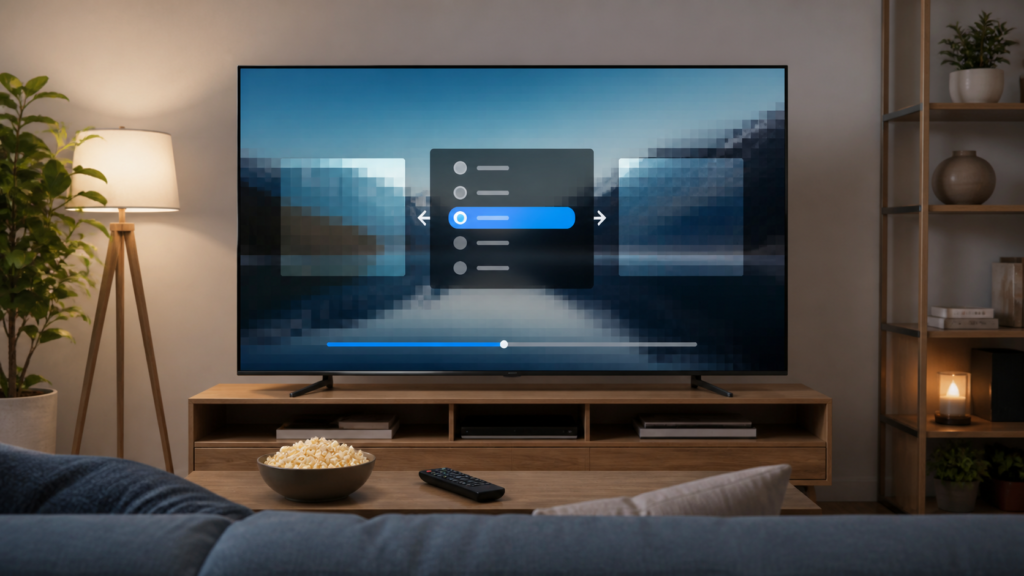
Quick answer: If IPTV picture quality keeps changing automatically, first check whether the change follows the item, the player, the device, or the network. Record the visible resolution or quality label, connection type, display mode, and timing. Use the player’s documented quality setting and one controlled comparison rather than forcing unsupported modes or repeatedly switching networks.
Define what changes
“Quality changes” can mean softer detail, a different resolution label, a brief lower-quality segment, brightness changes, or a picture that becomes pixelated. These symptoms have different possible causes. Note whether the change is gradual, happens during a new item, follows buffering, or appears after the device wakes from standby. Record whether audio continues normally.
Test one other item without changing the device. If only one item changes, report that comparison. If every item changes on the same device, continue with player and display checks. Do not send passwords, private URLs, or access tokens in screenshots.
Check player quality controls
Open the player’s documented video, stream, resolution, or quality menu. Record the current setting before changing it. If the player offers automatic and fixed options, use the manufacturer or application’s supported guidance and test one option at a time. Do not force a high resolution that the device or TV does not report as supported.
Close and reopen the item after saving a quality setting. Some players apply changes only to a new playback session. If the quality label changes but the picture looks the same, record both observations. A label alone does not prove a measured resolution.
Check device display settings
Use the streaming device’s recommended display mode and confirm the TV input. Avoid changing resolution, refresh rate, HDR, and picture-processing controls at the same time. If a mode change causes a brief black screen, wait for the device to return before judging the result. Restore the preferred setting after the comparison.
Test the TV menu and another permitted video source. If all sources look soft or unstable, investigate the display path. If only the IPTV player changes quality, keep the TV and HDMI arrangement unchanged while checking the player.
Check connection and device resources
Confirm system network status and test another permitted online service. If the quality change follows a wireless drop or reconnect, record that pattern. A wired comparison can be useful, but make one controlled test and note the connection type. Do not claim a permanent network solution from a single short session.
Review storage, temperature, and background apps if menus are slow or the device is hot. Low resources can affect player behavior, but do not assume they explain every visual change. Keep the device ventilated and close unused apps before repeating the same test.
Practical checklist
- Record what quality change is visible.
- Test a second item with the same setup.
- Record player quality and display settings.
- Use one supported player option at a time.
- Confirm TV input and recommended display mode.
- Check network status and one comparison app.
- Review storage, heat, and background apps.
- Reopen the item and record the final result.
Do not install unofficial codecs or modified players to force quality. Use supported application and device settings. If the quality change is accompanied by a signal message, include that message instead of guessing at the cause.
When to request help
Review the [IPTV service page](https://tvmemberlink.com/iptv-service/) and [services page](https://tvmemberlink.com/services/). The official [Telegram support group](https://t.me/iptvresellertml) is also available. Share device, player, quality symptom, item comparison, display mode, connection, storage, and error wording. Never send private tokens.
FAQ
Why does IPTV quality change only on one item?
Item behavior or session conditions may differ. Compare a second item and record whether the change follows the item or device.
Should I force the highest resolution?
No. Use a supported device and TV mode. Forcing an unsupported mode can create display or playback problems.
Can Wi‑Fi affect picture quality?
A connection change can affect playback behavior, but compare system network status and another app before concluding that Wi‑Fi is the only cause.
What details help support?
Device, player, visible symptom, item comparison, settings, connection, and exact message are useful. Hide credentials and private URLs.
Conclusion
Changing IPTV picture quality should be diagnosed across item, player, display, connection, and device-resource layers. Record the visible change, use supported settings, and make one controlled comparison at a time. For general information, start with the [TVMemberLink home page](https://tvmemberlink.com/) and use safe support channels.
Keep the final report factual, concise, and free of private account data.
If the quality changes after a reconnect or standby wake, state that exact sequence. If it changes only on one item, keep the item comparison separate from device-wide conclusions. A short, repeatable observation is more useful than a guessed resolution or unsupported technical claim.
Compare one item, one display mode, and one connection state. If the result changes, record the exact comparison and restore the preferred supported configuration afterward.
Keep all credentials and private access data out of screenshots and support messages during visual-quality troubleshooting.
Do not infer a technical resolution from appearance alone. Record the player label and visible result, then report both without unsupported claims.
Use the original setting as a baseline, test one supported option, and restore it after the comparison. This keeps the diagnosis reproducible and avoids unsupported display changes.
Picture quality can also appear to change when the TV’s own picture processing changes. Use a standard picture mode for a controlled comparison and restore the viewer’s preferred mode afterward. Do not infer a streaming resolution from sharpness alone, because display size, distance, and processing affect perception.
If a quality change occurs after the device wakes from standby, note whether the display mode, network status, or player session was restored first. A short wait followed by one player restart can separate readiness from persistent configuration. If the change repeats, report the sequence instead of repeatedly forcing settings.
When requesting support, keep descriptions precise and credentials private. A safe technical note can include the item type and device behavior without exposing the customer’s access details.
Use the same device, TV input, and player for the first comparison. If the quality label changes after a new session but the picture does not, record both facts. If a picture becomes softer only when the connection reconnects, report that timing separately from a display-mode change. Avoid promising a fixed quality level when the available player settings or item behavior have not been verified.
Review the device’s recommended display mode after an update or standby event. A temporary black frame during a supported mode change can be different from repeated flicker or a persistent low-detail picture. Record the exact message and restore a stable supported mode before continuing tests.
Keep the support report factual: device, player, item, visible quality change, display setting, connection, and comparison result. Do not include private account information.
