
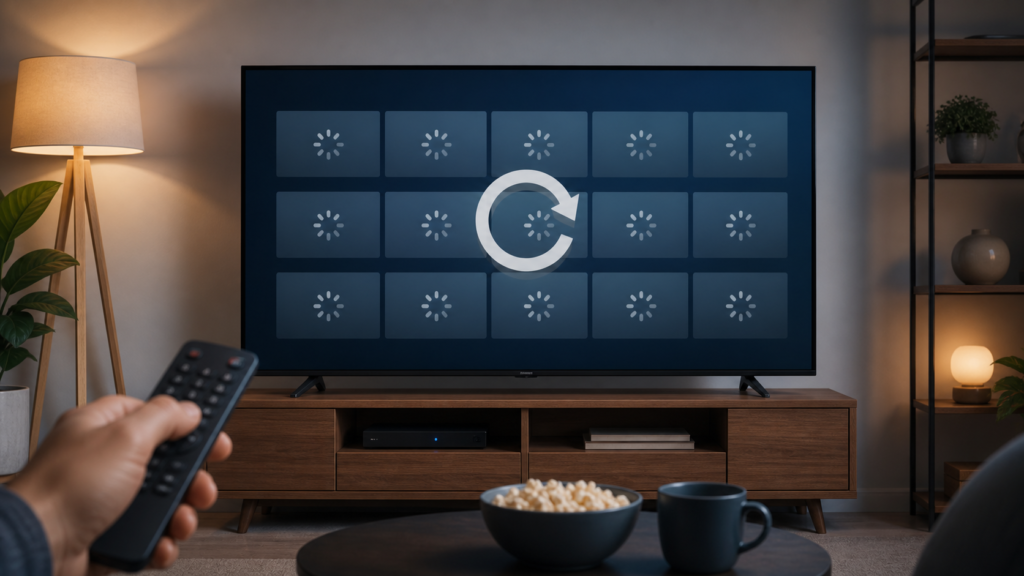
Quick answer: If IPTV channel logos or thumbnails are not loading, first check whether the list itself works, whether images fail for every item or only some groups, and whether the player has an image or metadata refresh control. Missing artwork does not automatically mean the stream is unavailable. Test playback separately and avoid repeatedly deleting or rebuilding the list.
Separate artwork from channel availability
A channel icon is supporting metadata, while the channel name and playable item are separate parts of the interface. A player may show blank placeholders even when a list is present and playback works. It may also display some logos but not others because the available metadata differs by item. Record the exact symptom: blank squares, broken-image symbols, slow thumbnails, incorrect artwork, or no artwork at all.
Note the device, player version, category, and whether the issue affects live items, movies, series, or guide screens. Hide passwords, private list addresses, and account identifiers in screenshots. If one item plays normally while its icon is missing, report those as separate observations.
Check the list and player state
Confirm the list is loaded
Open the broadest available category and scroll through a few entries. Check whether names and playback controls respond. If the list is empty or still loading, fix that broader list symptom first. An artwork request cannot complete for entries the player has not loaded.
Use the player’s normal list or metadata refresh once, then wait. Some applications expose separate refresh controls for list data, guide data, images, or categories. Choose the control that matches the symptom rather than refreshing every section repeatedly. Record which control was used and what changed.
Compare categories and items
Test one item in another category. If artwork appears there, the issue may be limited to the original group or its metadata. If no category shows artwork, continue with cache, storage, and connection checks. If only certain items are blank, do not conclude that the entire player is failing.
Check cache, storage, and permissions
Temporary image data may be stored locally. Use the device’s documented cache control only if you understand the difference between cache and app data. Clearing app data may remove local settings and require a legitimate setup process again. It is not the first step for a missing logo.
Review available storage using the operating system’s storage screen. Remove known unused downloads or applications if necessary. Low space can prevent temporary image files from being created, but a full device can also cause broader app symptoms. Do not use unknown cleaner utilities with broad permissions.
Check connection and display behavior
Confirm that the device reports a connection and test another permitted online function. If live playback and other apps work but artwork does not, the problem may be metadata retrieval or player presentation. If many online functions fail, investigate the device or local network first.
Check display scaling and accessibility settings if images appear clipped rather than absent. A logo can be loaded but hidden by a layout, contrast, or image-size setting. Test the standard display configuration briefly, then restore the preferred accessibility settings. Do not change several display options simultaneously.
Practical checklist
- Record whether the list and playback work.
- Identify blank, broken, slow, or incorrect artwork behavior.
- Test the broadest category and one comparison item.
- Use one relevant metadata or image refresh.
- Check connection and device storage.
- Review cache controls without clearing app data blindly.
- Test display scaling only if images are clipped.
- Report the affected layer without sharing private access information.
Restart the player normally if its artwork screen is unresponsive. Restart the device once if the player remains slow. Avoid reinstalling the player before recording the current behavior, because reinstalling can remove useful evidence and settings.
When to request help
Review the [IPTV service page](https://tvmemberlink.com/iptv-service/) and [services page](https://tvmemberlink.com/services/) for service context. You can also use the official [Telegram support group](https://t.me/iptvresellertml). Include device, player, category, whether playback works, image symptom, refresh action, storage state, and exact error. Never send passwords or private tokens.
FAQ
Can channels play when logos are missing?
Yes, artwork is supporting metadata and can fail separately from the playable item. Test playback separately and report both results.
Should I rebuild the whole list?
Not first. Confirm the affected category, use one relevant refresh, and check storage or cache before changing the list configuration.
Why do some logos load and others stay blank?
Different items can have different metadata. A selective issue may be tied to the affected group rather than the entire player.
What details help support?
Device, player, category, artwork symptom, playback result, refresh action, and storage state are useful. Hide credentials and private URLs.
Conclusion
Missing IPTV channel logos are usually best investigated as an artwork, metadata, cache, storage, or display-layer problem. Confirm that the list and playback work, compare categories, and use one controlled refresh before changing settings. For general information, visit the [TVMemberLink home page](https://tvmemberlink.com/) and use safe support channels.
Record whether the player still shows names and opens items after the artwork test, because those results confirm that the list itself remains usable.
Use only the player’s normal artwork controls and documented settings during diagnosis.
Report the affected layer and the final comparison result, while keeping private list information hidden. This makes the next troubleshooting step safer and more precise.
Keep the final comparison simple: same device, same player, same category, and one normal refresh. If the artwork changes after a restart, note that state rather than repeating the operation many times. Safe evidence is more valuable than an unverified replacement file.
Use the same category and a small number of items for the first comparison. If icons appear after a normal restart, record that improvement but do not assume a permanent fix. If icons remain missing while playback works, treat artwork as a metadata or presentation issue and keep the player configuration intact.
When an image refresh creates an error, capture only the visible technical message with account information hidden. This gives support enough context without exposing private list details or encouraging unverified artwork downloads.
Image loading can also be affected by display scaling or a player layout that reserves space for artwork. If placeholders are visible but the image is clipped, compare the standard display scale and the player’s thumbnail-size option. If the space is blank with no placeholder, record that separately. These observations help distinguish a rendering issue from missing metadata.
Do not use unverified image packs or third-party logo downloads to fill blank artwork. They may contain inaccurate or copyrighted material and can introduce additional application permissions. The safe goal is to diagnose the player’s supported metadata behavior, not to replace it with unknown files.
After a successful test, confirm that the player still opens the list and that the chosen category remains available. If a cache clear or restart changes the artwork but also resets settings, record both outcomes in the support note.
